
Appearance
Import and Export
MCP server configurations can be exported and imported as JSON. This allows you to share configurations between users or environments.
Exporting a Server
- Navigate to AI Tools > MCP Servers
- Click the three-dot menu on the server you want to export
- Select Export
The full server configuration is copied to your clipboard as formatted JSON. Internal fields (ID, creator, tenancy) are stripped from the export - only the portable configuration is included.
Importing a Server
- Navigate to AI Tools > MCP Servers
- Click the Import button in the top-right corner
- Paste the exported JSON into the editor
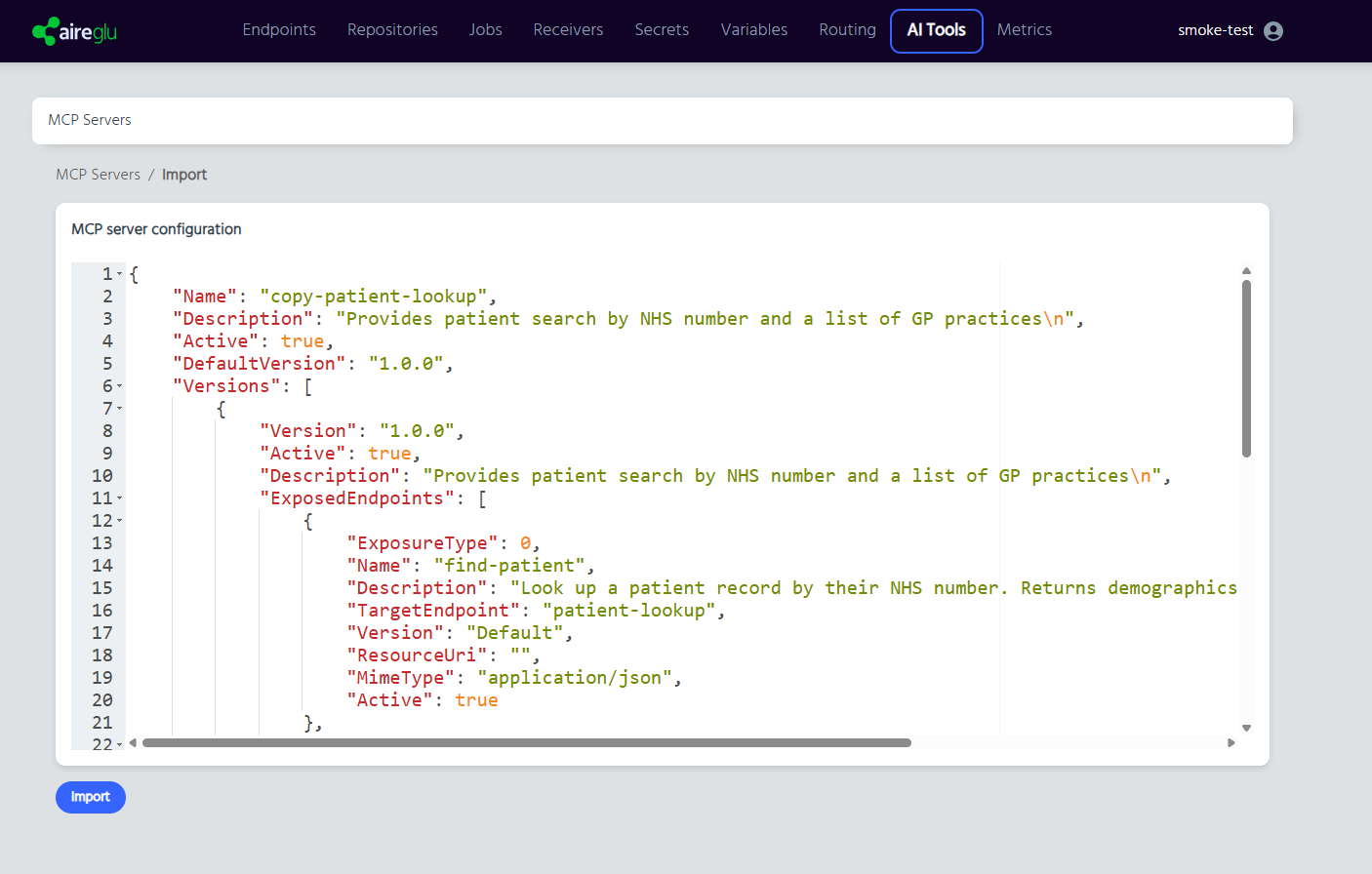
- Click Import
The imported configuration is created as a new server. Validation errors are displayed below the editor if the JSON is malformed or contains invalid values (e.g. duplicate names, missing required fields).
Import Validation
The import validates the same rules as manual creation:
- Server name must be unique in your account
- Version numbers must be valid semantic versions
- Endpoint names must meet naming constraints
- Resource URIs must be unique within each version
TIP
After importing, verify that all target endpoints exist in your account. Missing endpoints are flagged with a warning icon in the server list.
Repository-Synced Servers
MCP servers can also be synchronised from a repository integration. These servers appear in your list with a repository icon and have restricted actions:
- View - Read-only access to the configuration
- Copy URL - Copy the connection URI
- Copy Client Config - Copy the client configuration block
You cannot edit, delete, or toggle the active state of repository-synced servers. These are managed through the source repository.