
Appearance
Creating an Agent
Prerequisites
Before creating an agent, you need:
- The
create:AgentConfigurationpermission claim - Agents enabled for your tenant - contact support if it isn't
- At least one MCP server configured if you want the agent to invoke tools (see MCP Servers)
Create a New Agent
- Navigate to AI Tools > Agents
- Click the Create button in the top-right corner
- The agent editor dialog opens with four tabs: Agent settings, Configuration, Skill configuration, MCP servers
Agent Settings Tab
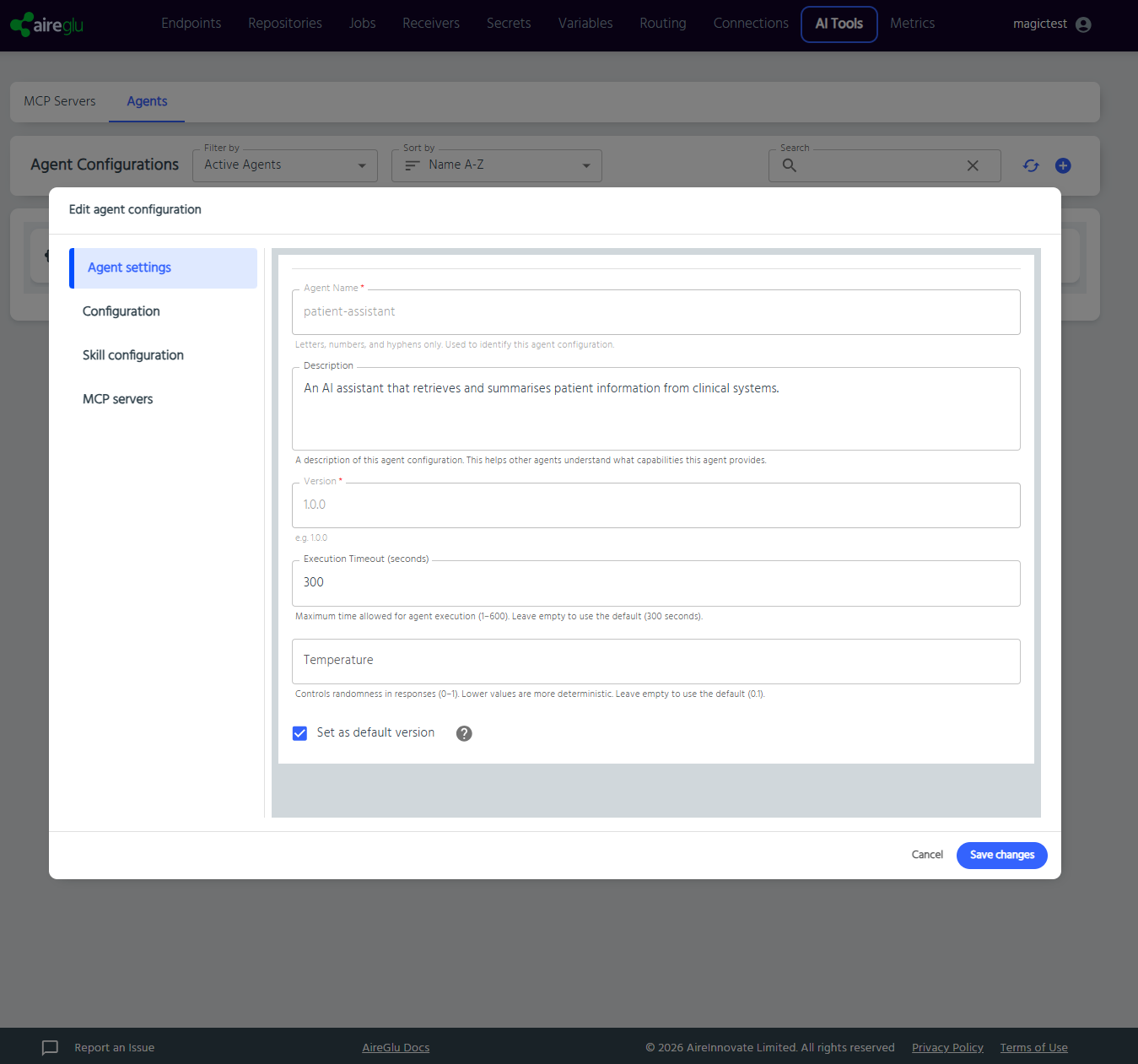
Agent Name
Required. The unique name for your agent. This value is used in the connection URL, so choose something meaningful and URL-friendly.
- Letters, numbers, and hyphens only
- Must be unique across your tenant
- Cannot be changed after creation
Description
Optional. Describes what this agent does. This text is published in the agent's A2A discovery card so calling agents understand its purpose.
Version
Required. A semantic version number in the format X.Y.Z (e.g. 1.0.0). Each agent must have at least one version. Versions must be unique within the agent.
Execution Timeout
Maximum time (in seconds) the agent has to complete a task. Range 1–600. Defaults to 300.
Temperature
LLM sampling temperature in the range 0–1. Lower values make the agent more deterministic. Defaults to 0.1.
Set as Default Version
When checked, this version is exposed by default when an A2A client requests the agent's card without specifying a version.
Configuration Tab
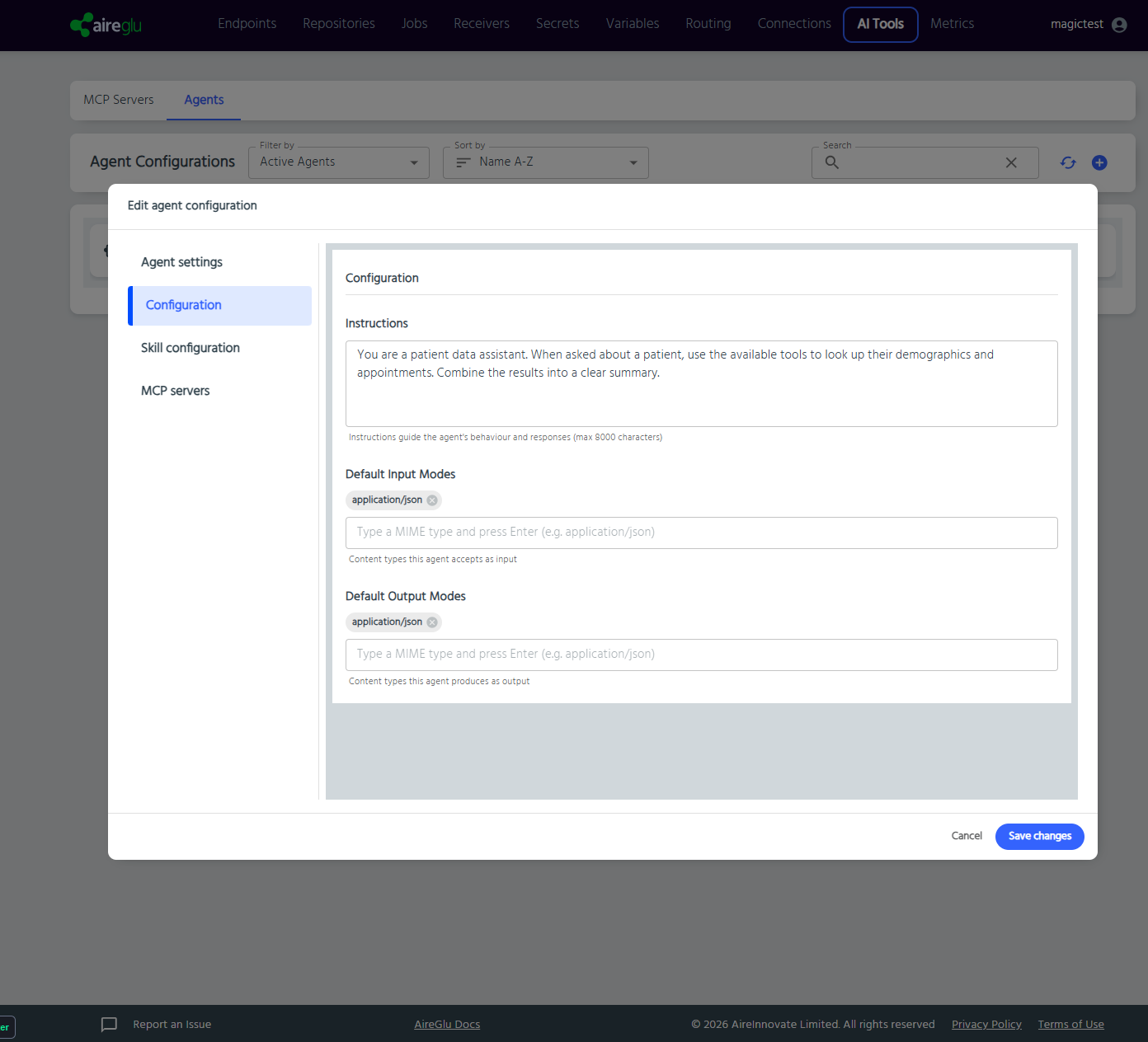
Instructions
The system prompt provided to the LLM when the agent is invoked. Up to 8000 characters. Tells the agent how to behave, what tone to take, and how to use its tools.
Default Input Modes / Default Output Modes
MIME types the agent advertises in its A2A card as supported inputs and outputs. Defaults to application/json. Press Enter to add a value.
Skill Configuration Tab
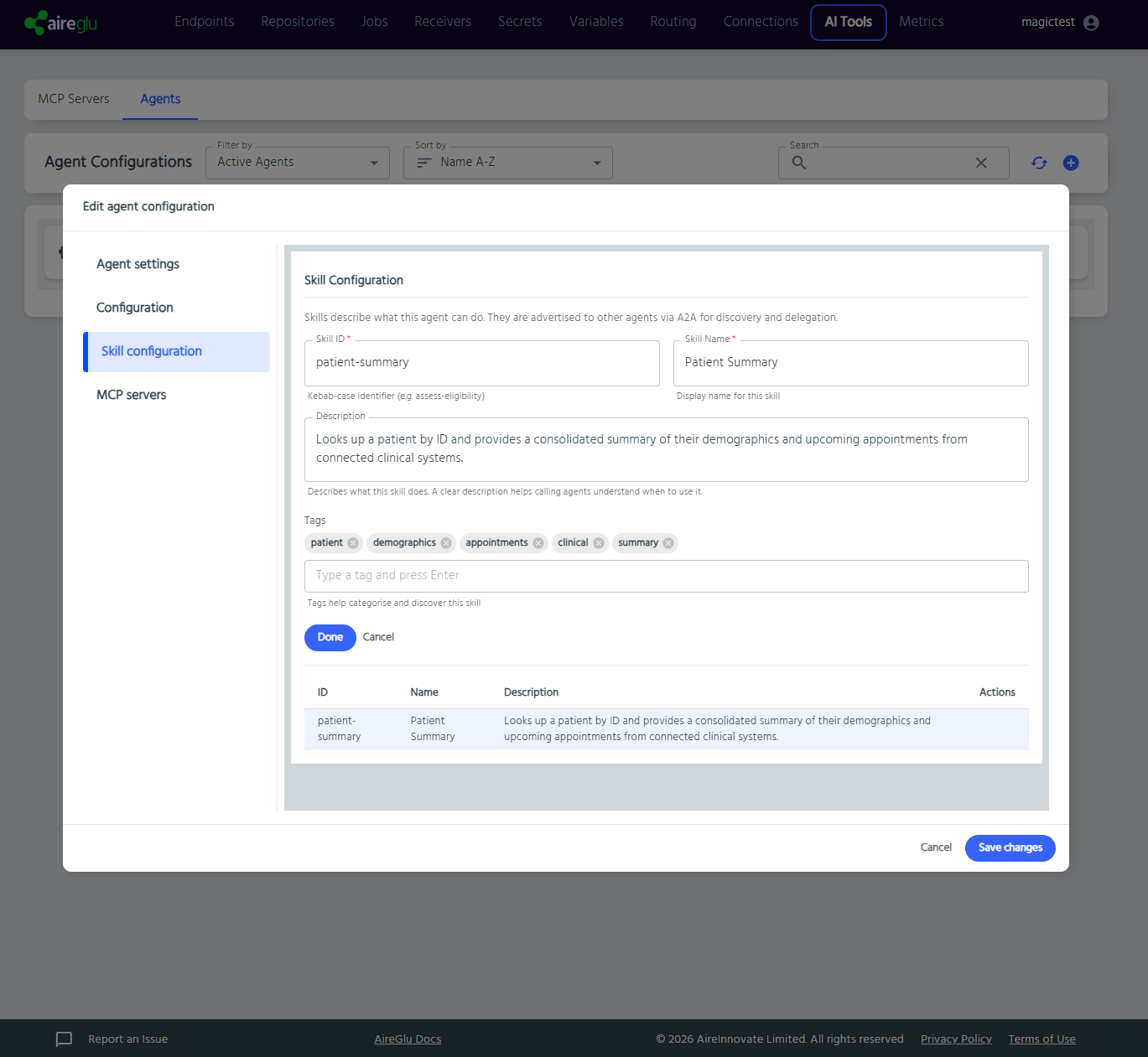
Skills describe what the agent can do. They are advertised on the agent card so other agents can discover and decide whether to delegate work.
IMPORTANT
Skills are descriptive only. They do not directly map to executable code. The actual work is performed by the LLM using the configured MCP server tools, guided by the agent's instructions.
You can add multiple skills - Click Done to add more.
Skill ID
Required. Kebab-case identifier (e.g. assess-eligibility). Visible in the public agent card and used by callers to reference the skill.
Skill Name
Required. Display name for this skill.
Description
Free text describing what the skill does and when to use it. The quality of this text directly affects how well calling agents pick the right skill.
Tags
Optional list of tags that help categorise and discover the skill.
MCP Servers Tab
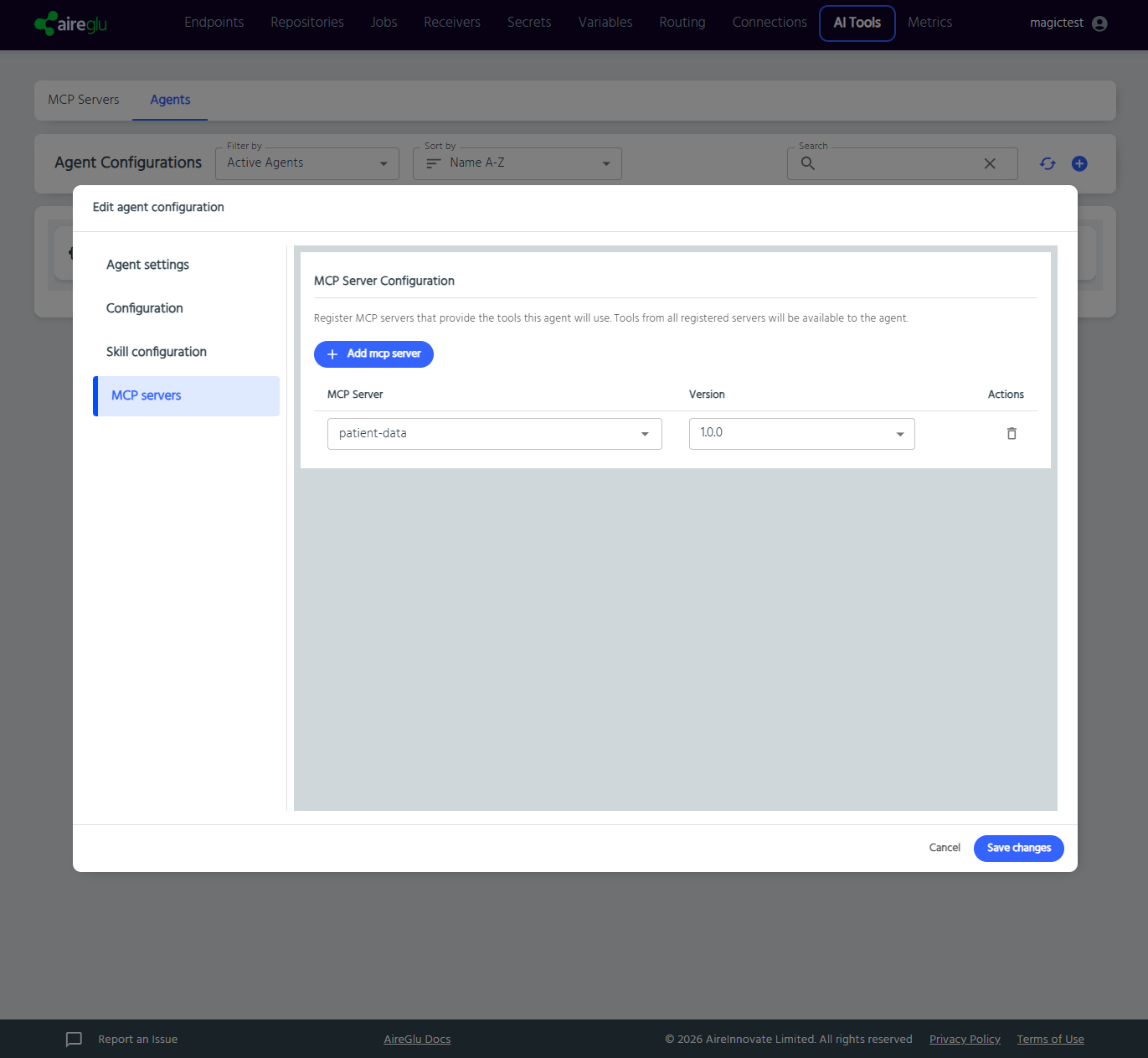
Register the MCP servers that provide the tools the agent will use. All tools from all registered servers are available to the LLM at runtime.
MCP Server
Select an existing MCP server configuration from your account.
Version
Choose a specific version of the MCP server, or Default to use whichever version is set as the server's default.
TIP
An agent with no MCP servers can still respond, but only based on its instructions and the contents of the prompt - it has no tools to call.
Saving
Click Save changes to create the agent. The agent appears in the list and is immediately available to A2A clients (provided both the agent and version are active).
Editing an Existing Agent
- Click the three-dot menu on the agent row and select Edit
- The edit dialog opens with the same tabs. The agent name cannot be changed after creation.
To edit a specific version, expand the agent in the list and click the three-dot menu on the version row.
Agent Actions Menu
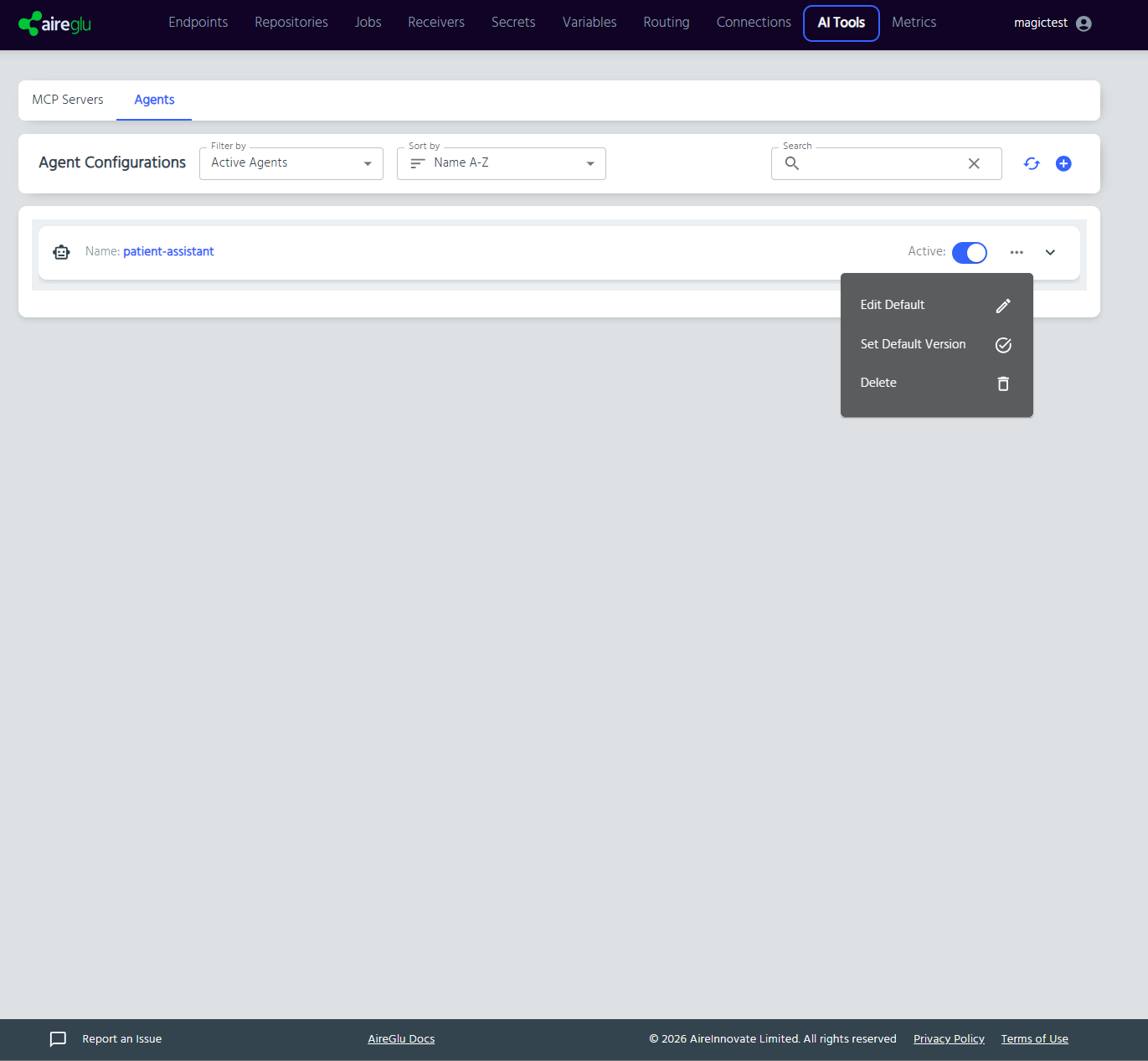
The three-dot menu on the agent row provides the following options:
| Action | Description |
|---|---|
| Edit | Open the agent editor dialog |
| Copy URL | Copy the A2A connection URL to the clipboard |
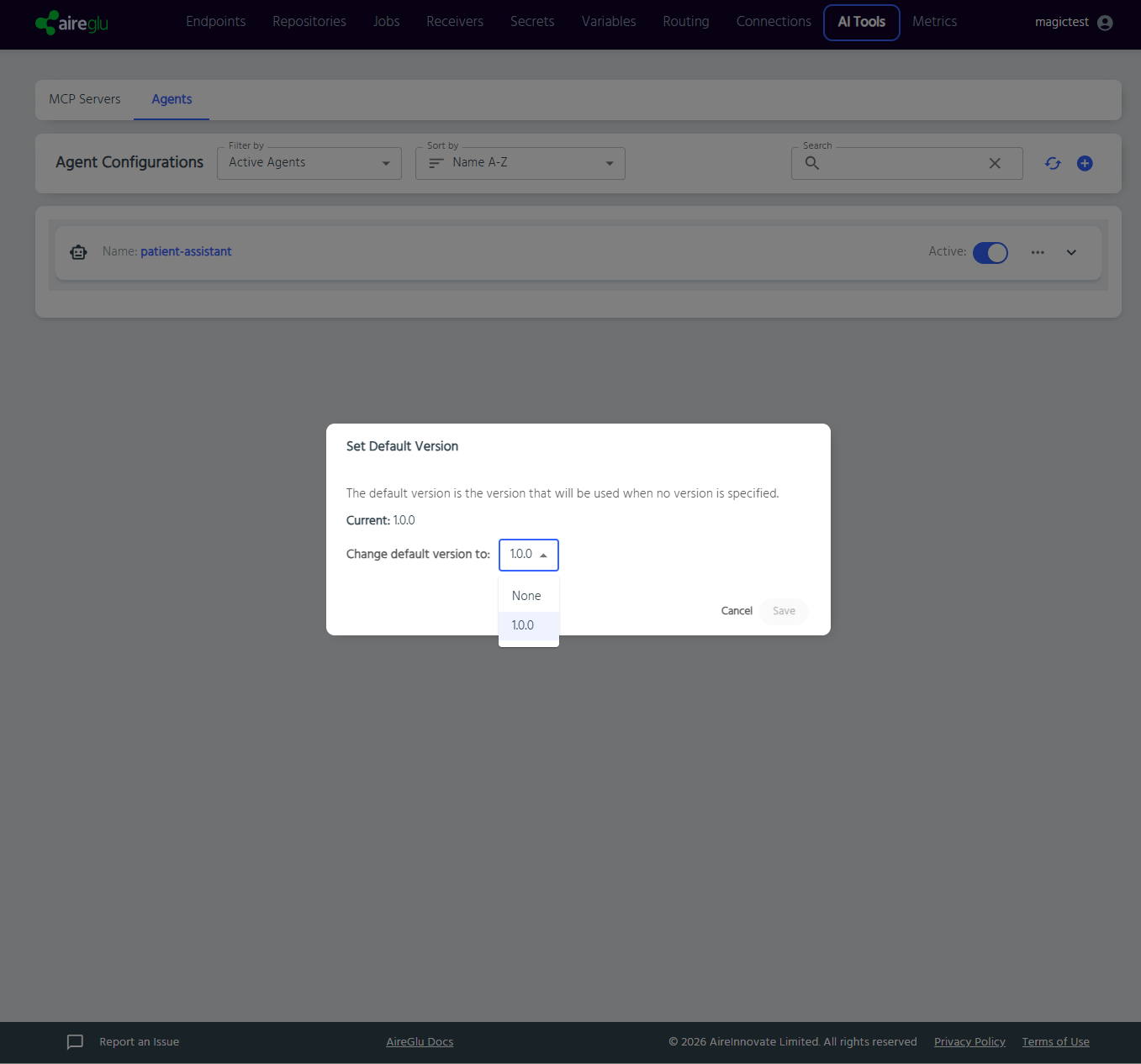
| Set Default Version | Open a dialog to change which version is exposed by default |
| Delete | Delete the agent (with confirmation) |
Version Actions Menu
The three-dot menu on a version row provides:
| Action | Description |
|---|---|
| Edit version | Open the editor for this specific version |
| Add version | Create a new version on this agent |
Setting the Default Version
The default version is the one returned in the agent card when no version is specified. Set it during creation via the Set as default version checkbox, or after creation via the agent's three-dot menu.
Activating and Deactivating
Agent Level
Toggle the Active switch on the agent row to enable or disable the entire agent. A deactivated agent rejects all A2A client connections.
Version Level
Toggle the Active switch on a version row to enable or disable that version. Inactive versions are excluded from the default version fallback.
Warning Indicators
The agent list displays warning icons when a version references an MCP server that no longer exists. The tooltip lists the missing server names. Resolve them by editing the version to add or fix MCP server references.