
Appearance
Working with Data
Most task settings can be built from data that's only known when the endpoint runs: the endpoint's input, the results of earlier tasks, variables, secrets and built-in functions. In the task editor, all of these are available from the Context Data panel on the left-hand side of the task configuration screen.
- Paths - values from the endpoint input and earlier task results
- Functions - built-in utilities such as dates, UUIDs and encoding
- Variables - tenant-wide, non-sensitive settings
- Secrets - private values such as passwords and API keys
- Preview - see a task's output before saving
- Filters - decide whether a task runs at all
For anything more than inserting a single value - loops, conditions, reshaping data - use Liquid templating.
Paths
Paths provide access to the input data that was originally sent in to the endpoint, and the outputs of any Mapping tasks and from HTTP Response Handlers. Changing the Data Origin field allows you to choose between available data sets.
Data Tree View
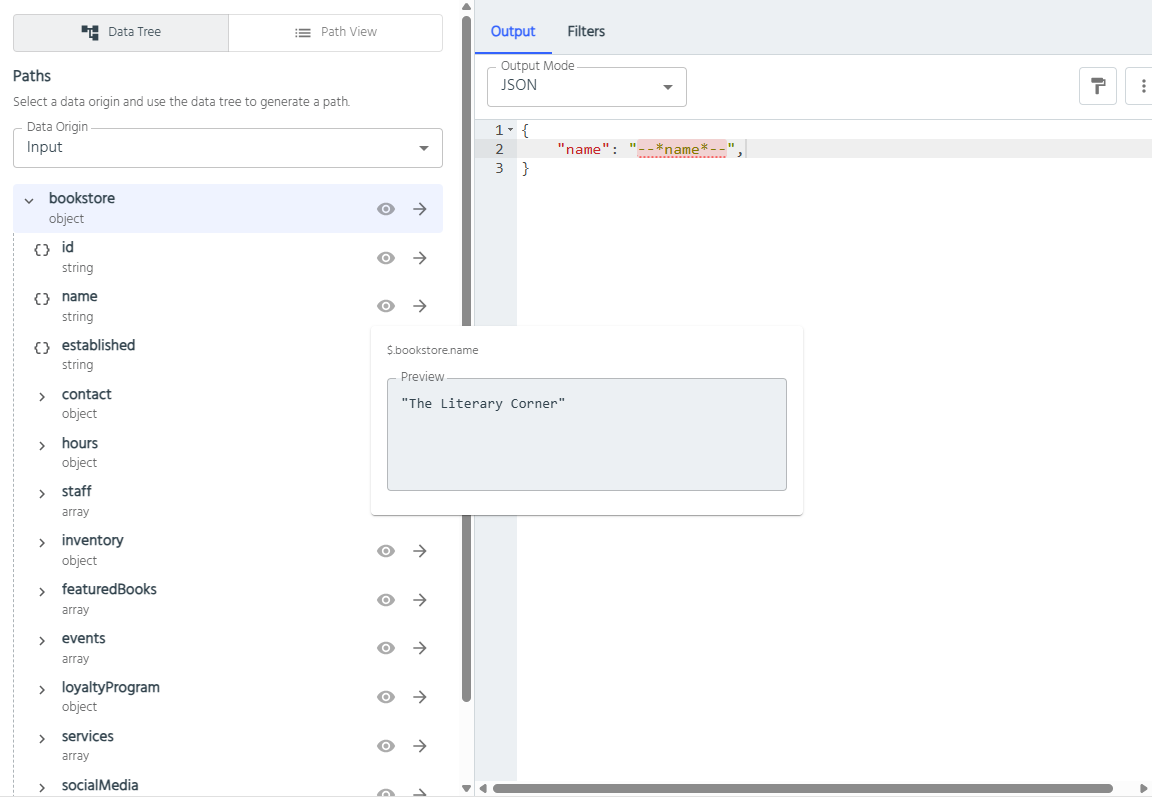
The default Data Tree tab displays your available data in an expandable tree structure:
- Data Origin: Select between available data sets using the dropdown (e.g., "Input" for the original request data)
- Tree Navigation: Expand objects and arrays to explore the data structure
- Preview Values: Click the eye icon next to any field to see a preview of its value
- Insert Paths: Click the arrow icon to insert the JSON path into your mapping
Path View
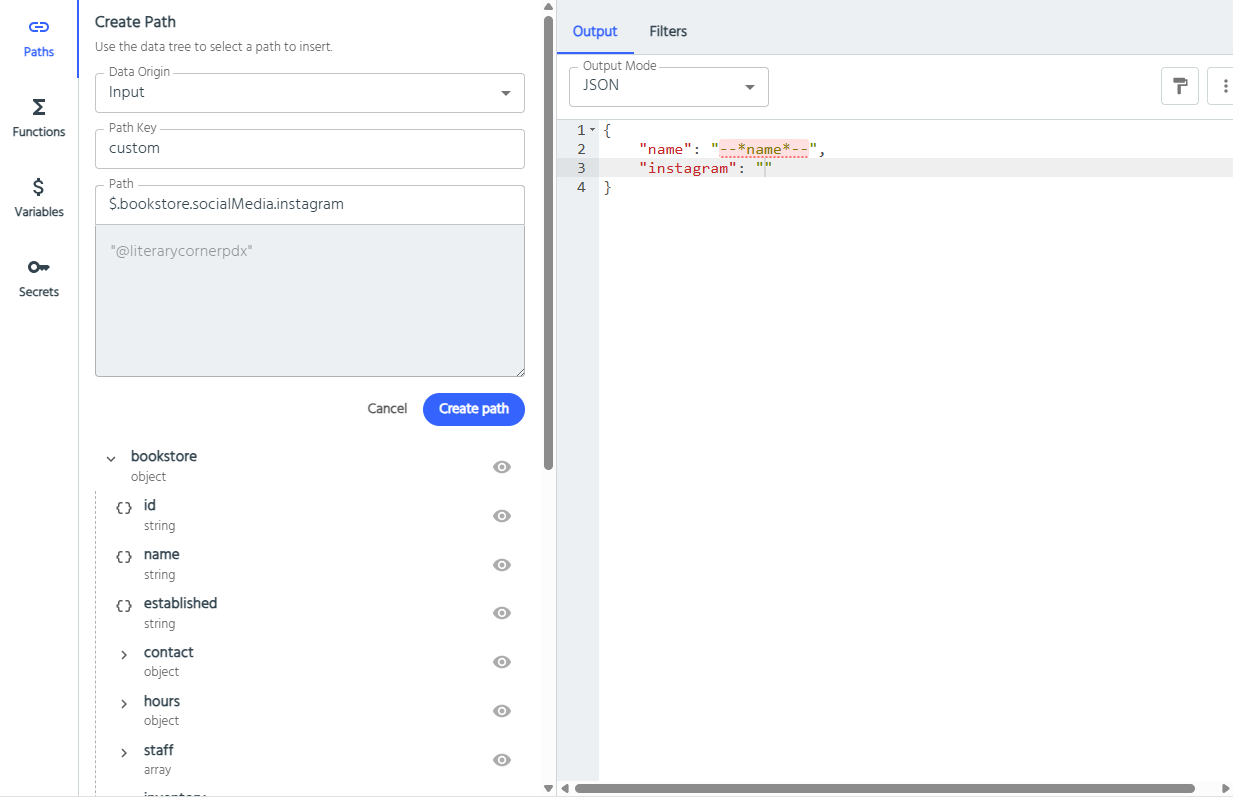
Switch to the Path View tab to create custom path mappings:
- Add Custom Paths: Enter a custom path key and specify the full JSON path (e.g., $.bookstore.socialMedia.instagram)
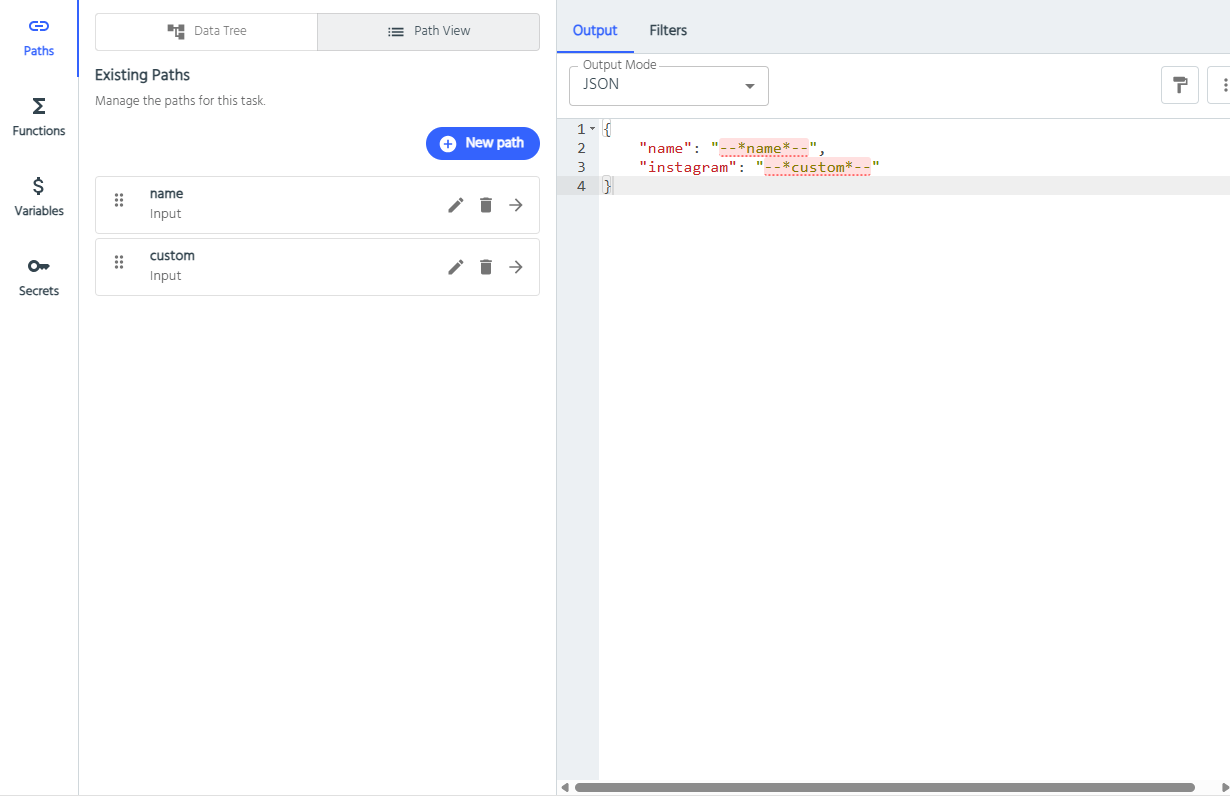
- Manage Paths: Edit or delete existing custom paths using the action icons
- Reusable Mappings: Custom paths appear in the "Existing Paths" list for easy reuse across your mapping
Using Paths
You can reference data in two ways:
- Drag and Drop: Drag any field from the data tree directly to where you need it in your mapping
- Click to Insert: Click on your destination field, then click the arrow icon next to the desired data path to insert it
All paths generate the appropriate JSON (or XPath if the data is in XMML format) path syntax automatically, making it easy to access nested data structures in your endpoint responses.
Example Path Editing
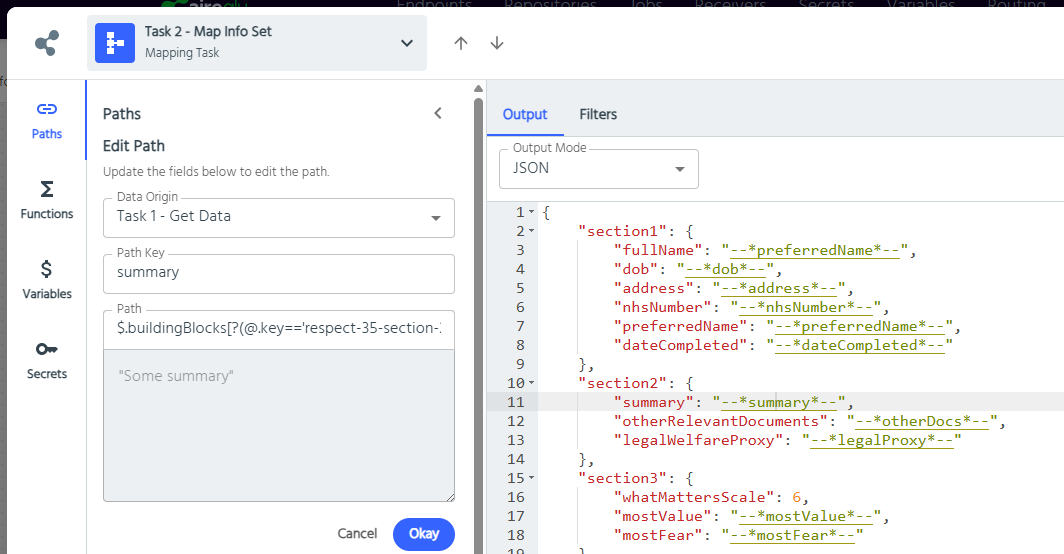
Sometimes the default paths created by AireGlu may need some fine tuning - for instance if the document order of the source data cannot be guarenteed or if you have an array of key value pairs.
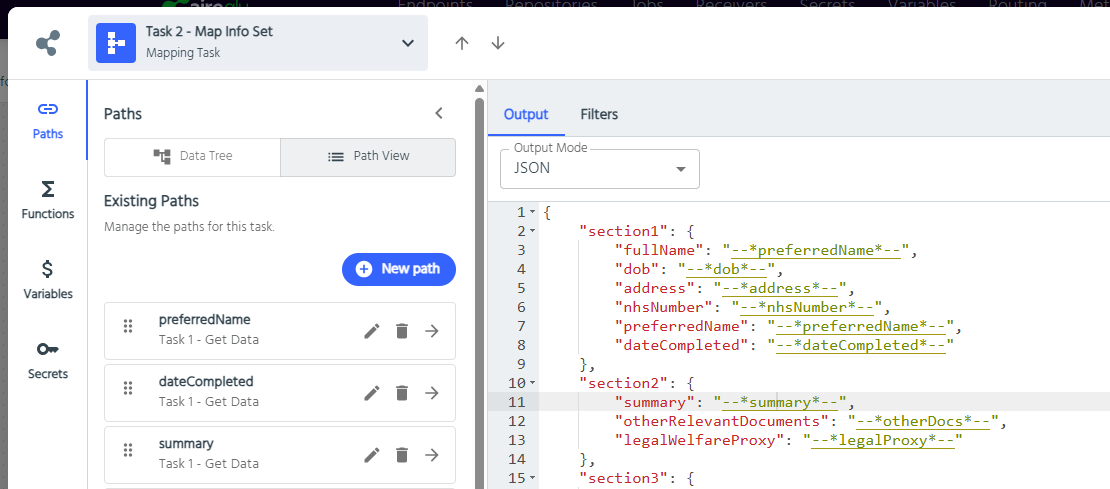
In this example for the --*summary*-- field the default JSONPath mapping provided by AireGlu was $.buildingBlocks[2].controls[0].values[0].value.
However to avoid any brittleness arising from changes to the document order and ensure the path mapping is generally more robust you can use the path editor to ensure you are selecting exactly the right data (in this case using JSON path predicates) - for instance your JSONPath might be updated to $.buildingBlocks[?(@.key=='respect-35-section-2')].controls[?(@.id=='diagnosis')].values[0].value
Functions
Functions provide built-in AireGlu utilities for data transformation and processing. These functions can be used to perform common operations like encoding, date formatting, generating unique identifiers, and more. Use the search box at the top of the Functions panel to quickly find specific functions by name or functionality.
Available Functions
Functions are written as --*AG:Name(parameters)*--. The table shows just the AG:... part.
| Function | What it does | Example → result |
|---|---|---|
| DateTime | Current UK date and time, with an optional .NET format | AG:DateTime(dd-MM-yyyy) → 23-10-2025 |
| UUID | Generates a unique GUID | AG:UUID() → 752159eb-4b5c-... |
| Random | Random whole number from the minimum up to, but not including, the maximum | AG:Random(1, 100) → 1 to 99 |
| OID | Generates an object identifier, with an optional prefix | AG:OID(test-prefix) → test-prefix.4695... |
| Base64Encode | Encodes a string or stream as Base64 | AG:Base64Encode(test-string) → dGVzdC1zdHJpbmc= |
| Base64Decode | Decodes a Base64 string | AG:Base64Decode(dGVzdC1zdHJpbmc=) → test-string |
| UrlEncode | URL-encodes a string | AG:UrlEncode(isn't it) → isn%27t+it |
| Raw | Inserts a value without transforming it for the output format. See special characters | AG:Raw(--*name*--) → O'Brien, not O'Brien |
| JWT | Creates an RSA-signed JSON Web Token containing the given claims | AG:JWT({key}, {claims-json}) → eyJhbGciOi... |
- DateTime without a format returns e.g.
10/23/2025 2:01:17 PM. - OID without a prefix returns just the generated part, e.g.
.16119148528986018192686031671488659480. - JWT: store the RSA signing key as a secret. The task preview shows
[JWT token]instead of a real token.
Useful information regarding special characters
One thing to watch out for is if you supply a path token which contains a value with special characters e.g. path value-to-encode with value of O'Brien and supply this to a function like so: --*AG:UrlEncode(--*value-to-encode*--)*--, it will actually attempt to transform the path value initally resulting in the value O\u0027Brien if the output mode is JSON. In the UrlEncode example, this value will then get URL encoded to give you O%5cu0027Brien. If you would rather skip this initial transforming to O\u0027Brien then you must use the Raw function at the same time like so --*AG:UrlEncode(--*AG:Raw(--*value-to-encode*--)*--)*-- to give you a result of O%27Brien. The same behaviour exists for a liquid expression too, in this case
--*AG:UrlEncode({{ input.value-to-encode }})*--would give you a result of O%5cu0027Brien, whereas:
--*AG:UrlEncode({{ input.value-to-encode | raw }})*--or
--*AG:UrlEncode(--*AG:Raw({{ input.value-to-encode }})*--)*--will give you O%27Brien.
Another thing to note, by default when using paths or liquid expressions, the values returned will be transformed if used in a textbox/textarea which has an output format setting. This output format will determine what transformation takes place and ultimately what value is returned. Using the value-to-encode with value of O'Brien example above this would give us a transformation of O\u0027Brien for JSON, O'Brien for XML/HTML, O%27Brien for Query String, and simply O'Brien for Text. However, this won't be the case for variables or secrets. In the case of variables and secrets, the values will not be transformed and will always resolve to the exact text value that was supplied. Therefore, if you had a variable of O'Brien, the value returned would still be O'Brien regardless of the output mode selected. If, for example, you wanted to have a JSON transformed value you would need to create a new variable with the value explicitly set as O\u0027Brien.
Below shows various examples of the value-to-encode path and value-to-encode-variable variable being used with an XML based mapping task and functions. 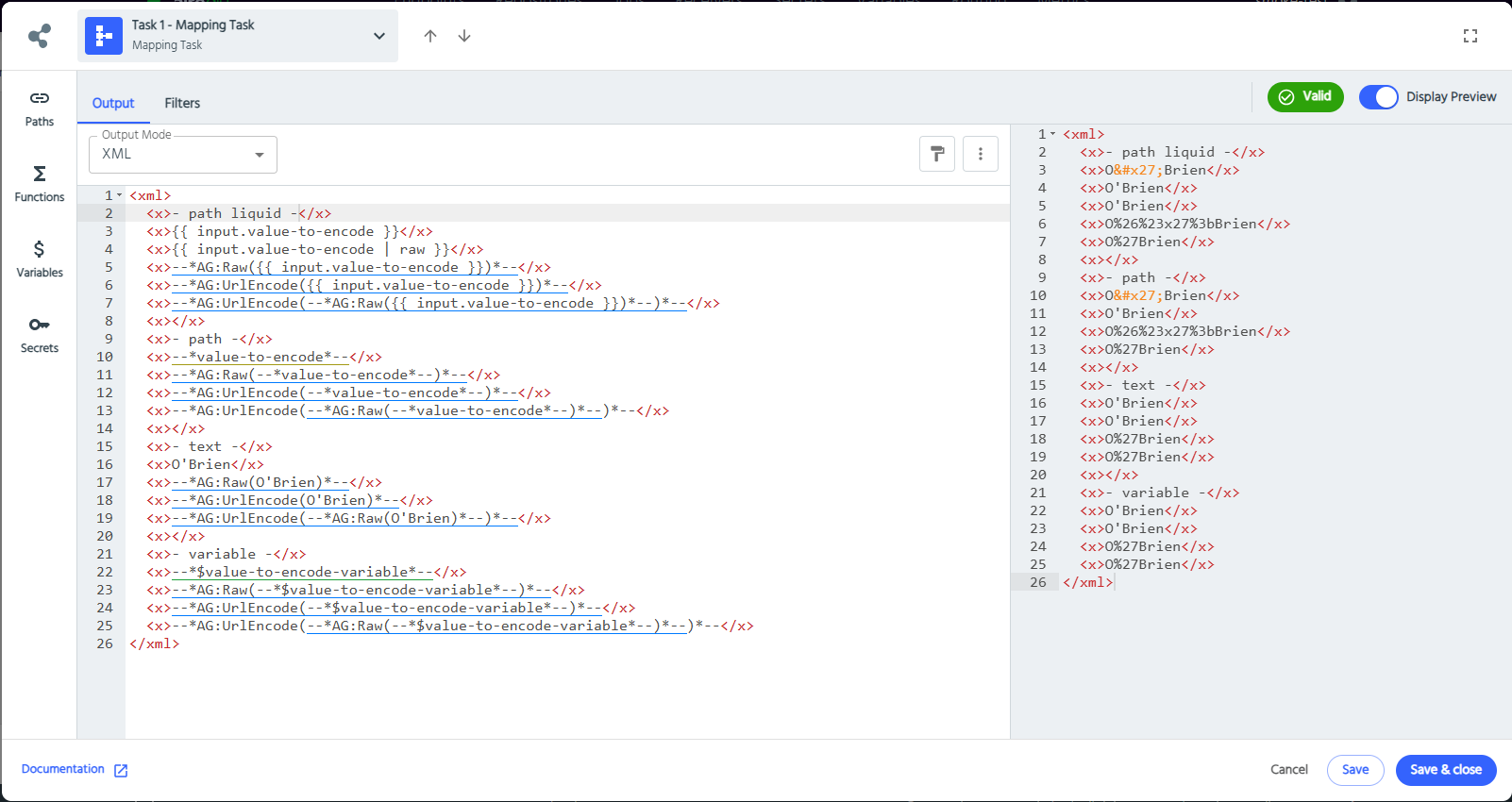
Using Functions
Functions can be configured in two ways:
- Hard-coded Values: Enter static values directly into the function parameters
- Dynamic Templates: Use paths, variables, or secrets as function inputs by templating them into the parameters
Inserting Functions
- Drag and Drop: Drag any function from the list directly to where you need it in your mapping
- Click to Insert: Click on your destination field, then click the arrow icon next to the desired function
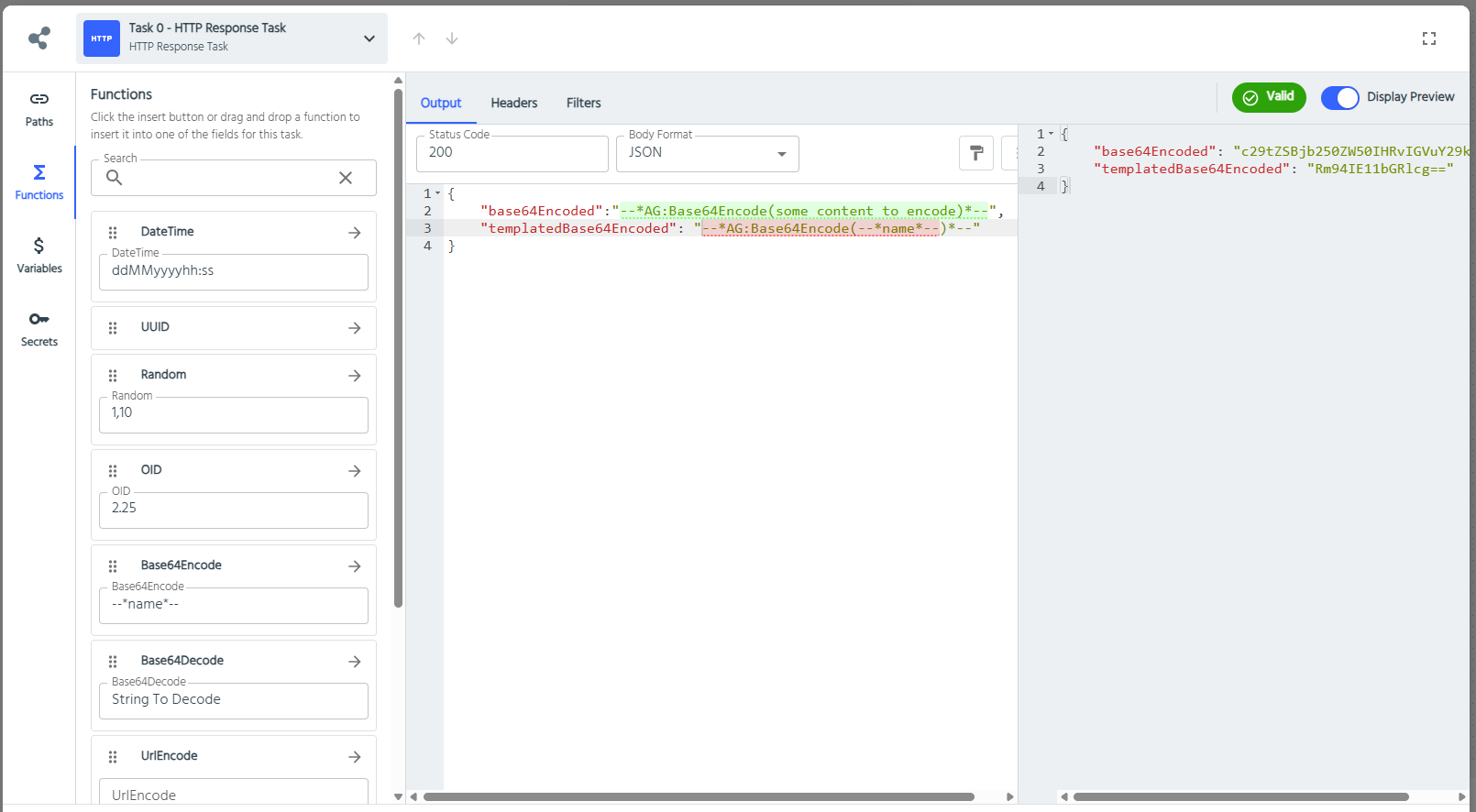
In the examples shown:
- Base64Encode: Encoding content like --name-- (a templated path reference) into Base64 format
- Templated Base64Encode: Using
--AG:Base64Encode(--name--)--to encode dynamic content from the name field
The preview panel shows the real-time execution of these functions, demonstrating how they transform your data in the actual endpoint output.
Secrets
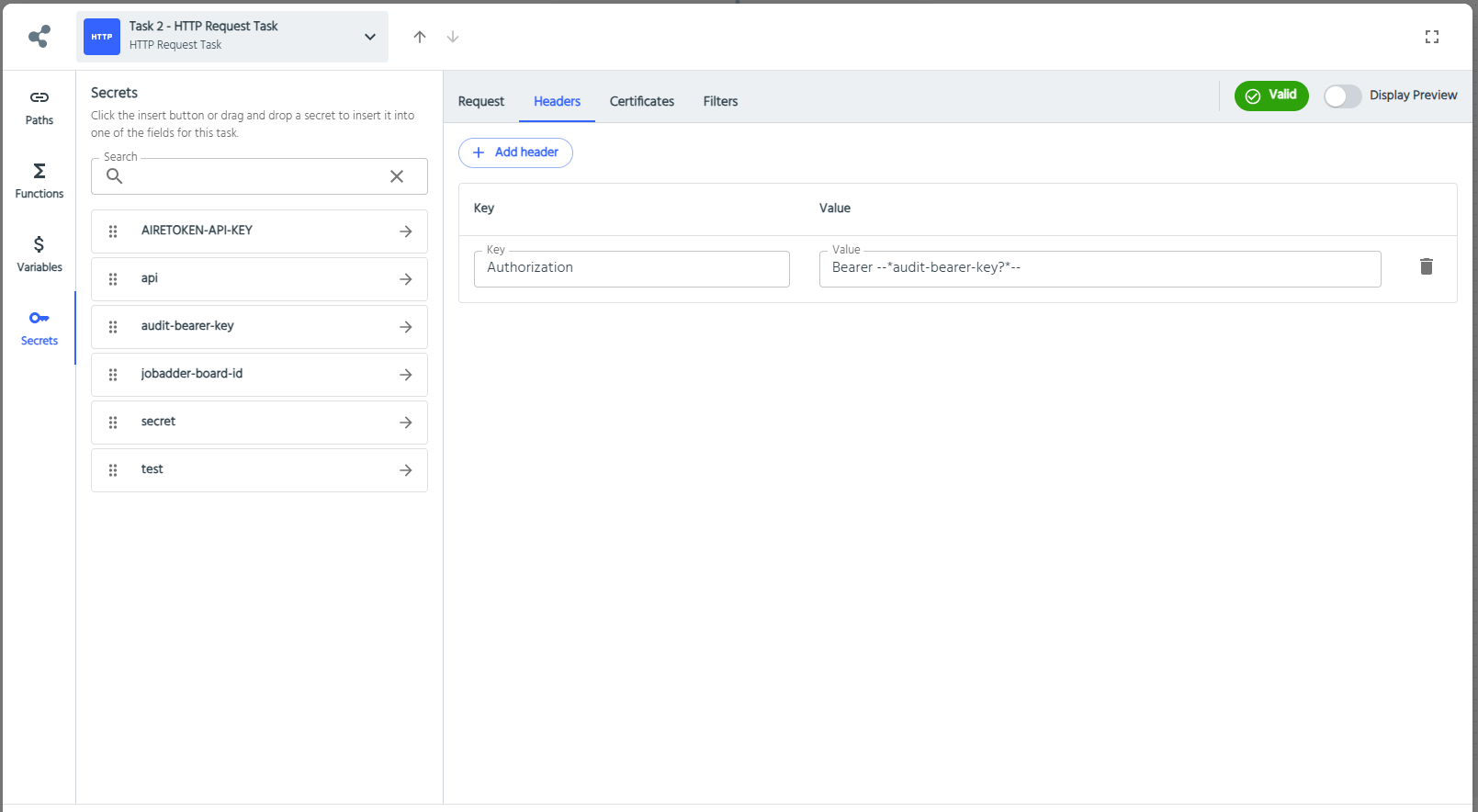
Secrets hold private data such as passwords, API keys and tokens. Their values can't be viewed once saved, so they're safe to template into things like an Authorization header (e.g. Bearer --audit-bearer-key?--) without hardcoding credentials. Insert one by dragging it from the Secrets panel, or by clicking the destination field and then the arrow next to the secret. Use the search box at the top of the panel to find a secret quickly.
See Secrets for how to create and manage them.
Variables
Variables are tenant-wide settings for reusing common, non-sensitive values across endpoints. Unlike secrets, their values are visible and editable. Insert one the same way as a secret, by dragging it from the Variables panel or by clicking the destination field and then the arrow next to the variable.
See Variables for how to create them and how scopes work.
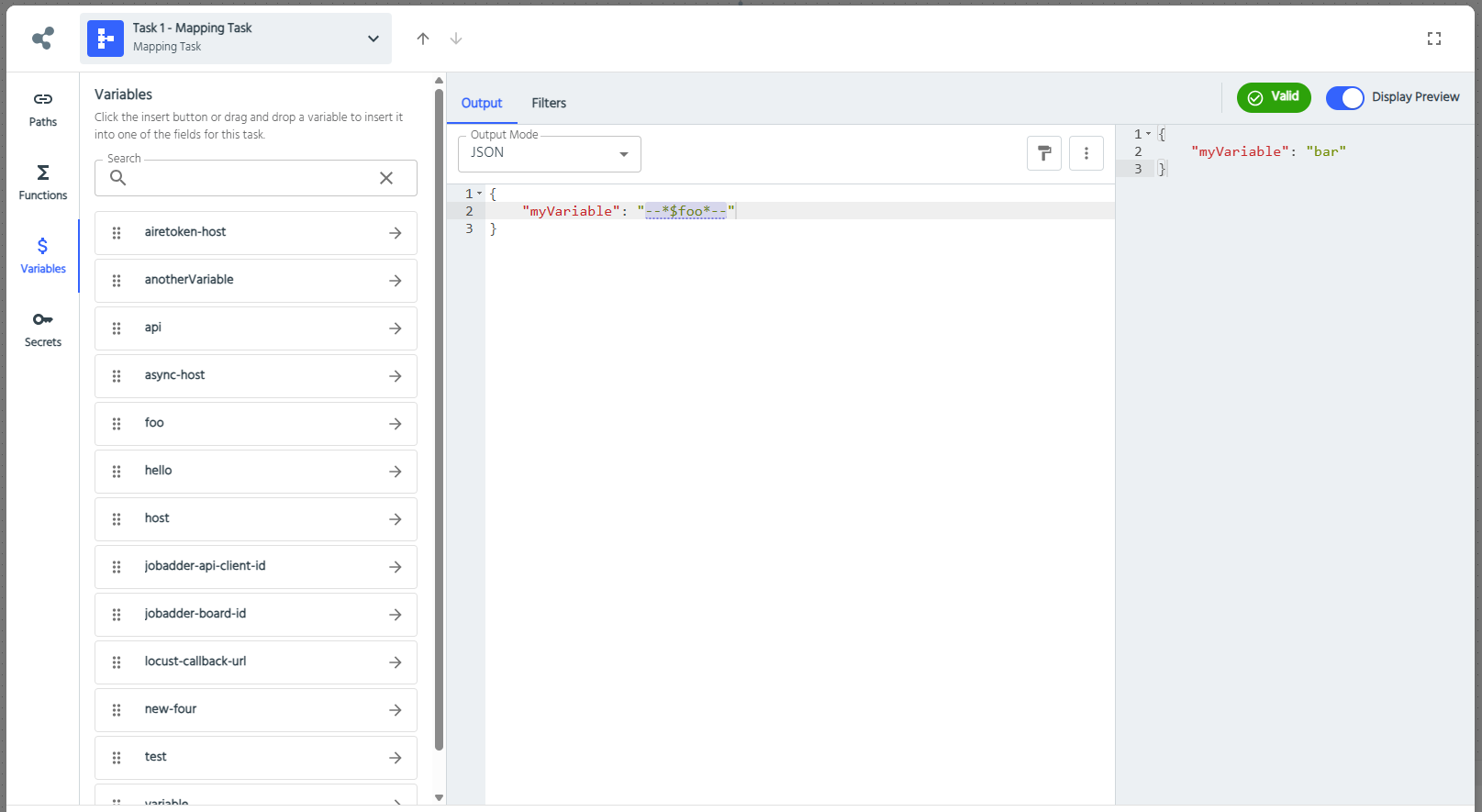
Preview
The Preview panel on the right side shows you the output of your task. It can help you verify your mapping logic works correctly before saving your task. This collapsible panel can be toggled on and off using the "Display Preview" switch in the top-right corner.
The preview executes your mapping logic using sample data to show you exactly what your task output will look like. It processes:
- Dynamic Data: References to input data and previous task outputs
- Function Execution: Real-time execution of AireGlu functions like UUID generation, date formatting, etc.
- Data Transformations: Any mapping, filtering, or transformation logic you've configured
Using the Preview
- Toggle Display: Use the "Display Preview" switch to show or hide the preview panel
- Validation: Click the "Validate" button to check for errors and refresh the preview
- Error Detection: Any issues with your mapping will be highlighted, requiring correction before the preview can display properly
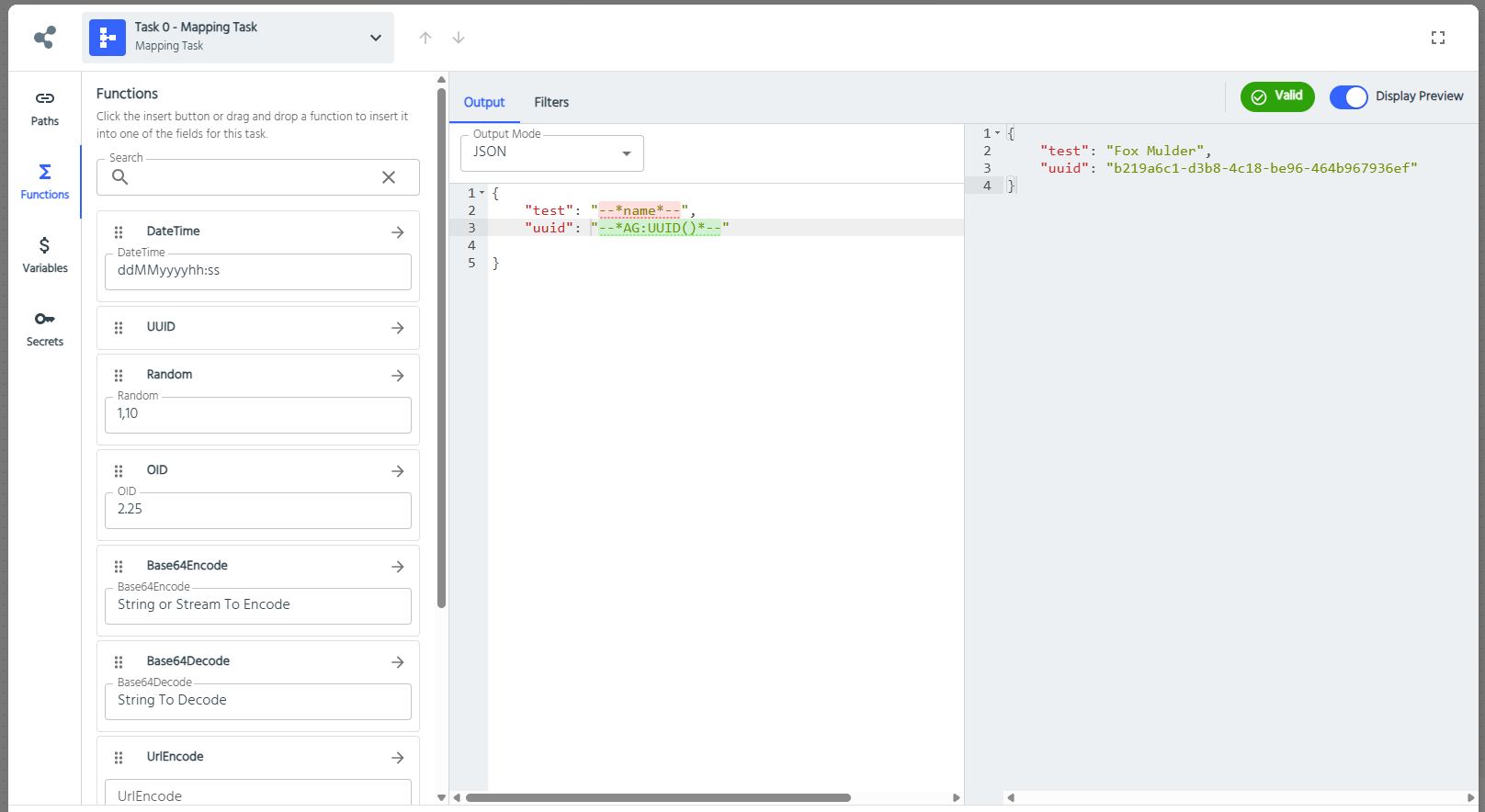
In the example shown, the preview demonstrates:
- The test property mapping from input data ($.name)
- Live execution of the UUID function generating a real UUID value
- The final JSON structure that will be output by this mapping task
Filters
Filters decide whether a task runs. Each filter is evaluated at runtime to true or false, and the task is skipped if any filter evaluates to false. You can add multiple filters to a task, or copy the filters from one task to another.
A skipped task doesn't stop the endpoint. It still appears in the endpoint's results with a 200 status code and the result Disabled by filter - behaviour was not run. See How the Endpoint Response is Decided for how skipped tasks affect the response.
There are two kinds of filter: path filters and Liquid filters.
Path Filters
A path filter has a data origin and a path expression. The data origin is the data the path reads from: the input, or the output of a previous task. Use JSONPath for JSON data origins and XPath for XML data origins.
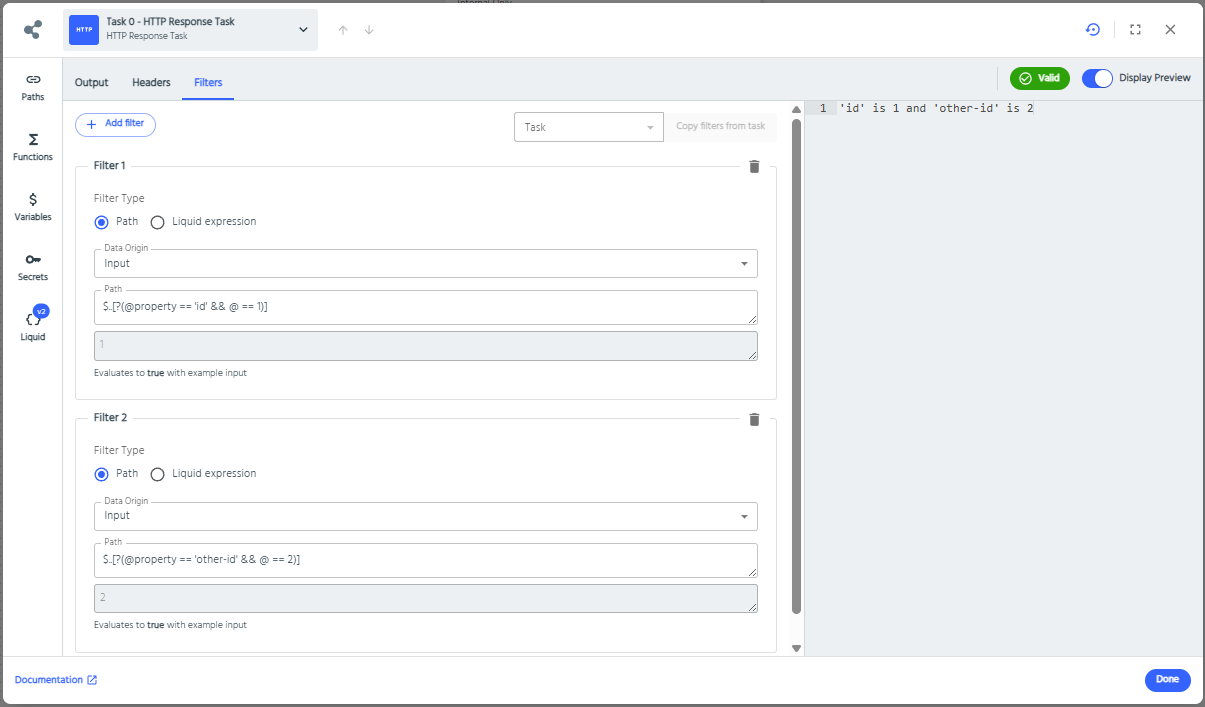
JSONPath filters check that something was found
A JSONPath expression doesn't return true or false. It returns the elements that match the path. AireGlu then checks whether anything matched:
- If the path matches at least one element, the filter evaluates to
trueand the task runs. - If it matches nothing, the filter evaluates to
falseand the task is skipped.
The value that was found isn't checked. A path that finds a property set to false, null, 0 or an empty string has still found something, so the task runs. This is the most common surprise with filters: $.patient.active runs the task whether active is true or false.
To check a value, use a filter expression ([?(...)]). It keeps only the children of the path before it that pass the test, so if none pass, nothing is matched.
With this input:
json
{
  "patient": { "nhsNumber": "9434765919", "active": false, "age": 17 },
  "appointments": [
    { "status": "booked" },
    { "status": "cancelled" }
  ]
}| Filter | Evaluates to | Why |
|---|---|---|
$.patient.nhsNumber | true | The property exists |
$.patient.email | false | The property doesn't exist |
$.patient.active | true | The property exists. Its value, false, isn't checked |
$[?(@.active == true)] | false | patient is the only child with an active property, and its value isn't true |
$[?(@.age >= 18)] | false | patient.age is 17 |
$.appointments[?(@.status == 'cancelled')] | true | One appointment is cancelled |
$.appointments[?(@.status == 'attended')] | false | No appointment is attended |
$.appointments[0] | true | There's at least one appointment |
Query string and HL7v2 inputs are converted to JSON before the filter runs, so they also use JSONPath.
XPath filters must return true or false
For XML data origins, the XPath expression itself must return true or false, for example boolean(/patient/nhsNumber) or /patient/active = 'true'. Unlike JSONPath, an XPath that returns an element, some other value, or nothing at all doesn't just skip the task: the filter can't be evaluated, so the endpoint returns an error.
Liquid Filters
Liquid filters use a Liquid expression, with full access to the Liquid data. The expression must output exactly true or false (surrounding whitespace is ignored). Any other output is invalid.
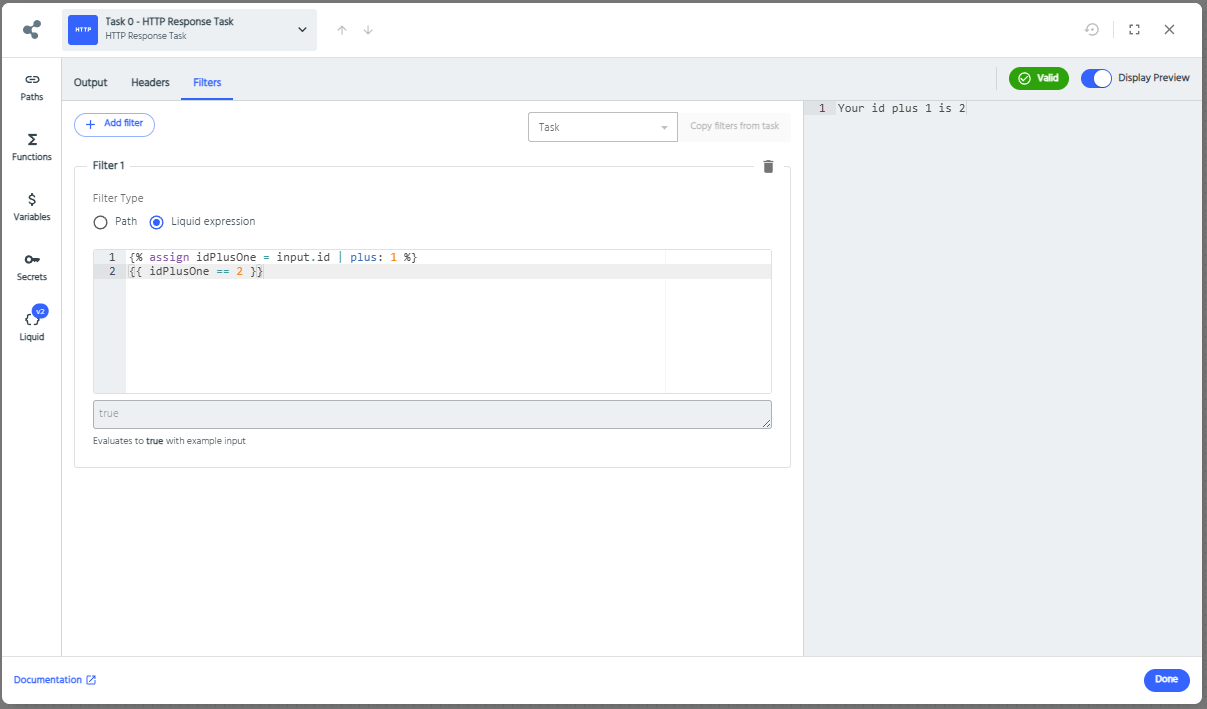
Because you choose what the expression outputs, a Liquid filter is the simplest way to check a value rather than whether something exists. With the input above, this filter skips the task because active is false:
liquid
{% if input.patient.active == true %}true{% else %}false{% endif %}Use an if like this rather than outputting a value directly, such as {{ input.patient.active }}. If the value is missing, the output is empty, which isn't true or false, so the filter is invalid.