Appearance
Office 365 Mail
The Office 365 Mail connection stores the details required to send emails from your configured mailbox. This centralised configuration, can then be referenced by many Email Tasks across many endpoints.
Prerequisites
You will need the following pieces of information before you can create an Office 365 connection.
- An Azure Tenant ID.
- An Entra Application ID.
- Client Secret for the application (Registered as a secret within AireGlu's secrets).
If you are wanting to connect to NHS Mail, please follow the process as documented here: NHS Mail Application Request.
Noting we currently only support client secrets and the required permission is Graph Mail Application: Mail.Send
If you wish to configure an application within your own Azure Tenant please follow this guide: Entra Quick Start Register App.
WARNING
When registering your own application it is your responsibility to configure the application correctly and to only give it access to the expected mailbox it should send emails from. Please see Exchange application rbac
Creating an Office 365 Mail Connection
Ensure you have the prerequisite information in hand and the Client Secret stored in AireGlu's secrets.
To add a new Client Connection:
- Go to the Connections section in AireGlu.
- Click the Add button.
- Select Office 365 Mail as the connection you want to create
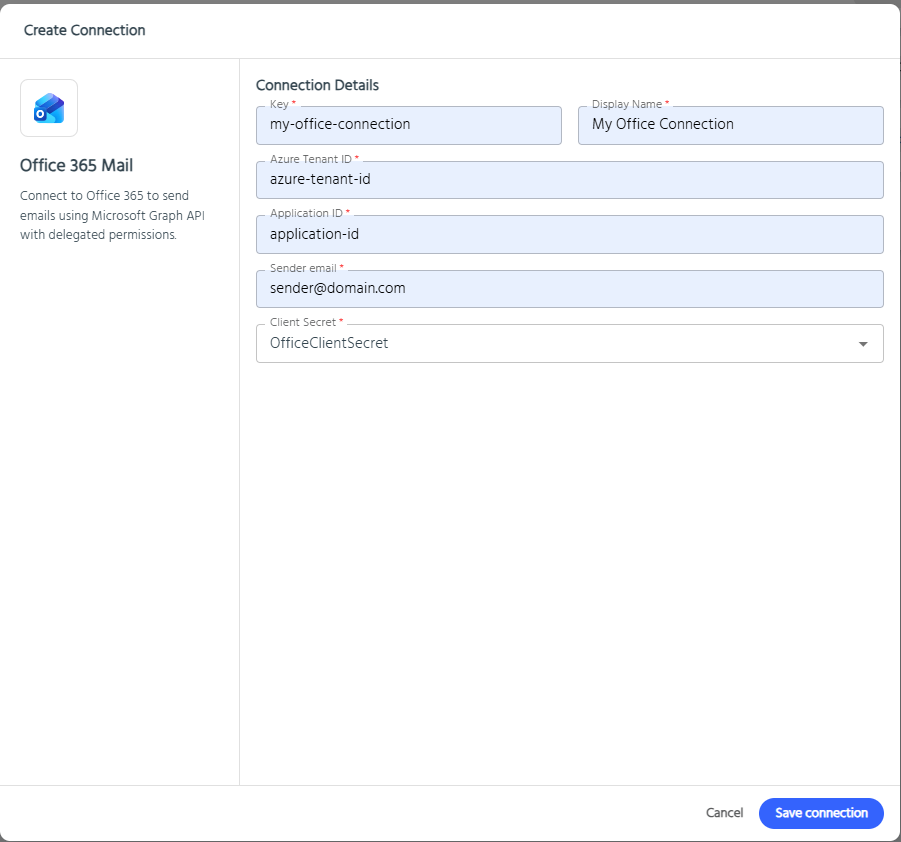
- Fill in the required fields:
- Key: A unique identifier for this connection (e.g.,
my-office-connection). - Display Name: A friendly name for easy reference.
- Azure Tenant ID: The Azure Tenant ID the app is registered under.
- Application ID: The registered Entra Application ID.
- Sender Email: The email address that should be used to send emails from.
- Client Secret: Reference an AireGlu secret that contains the client secret value.
- Key: A unique identifier for this connection (e.g.,
- Click Save connection.
Using an Office 365 Mail Connection in Email Tasks
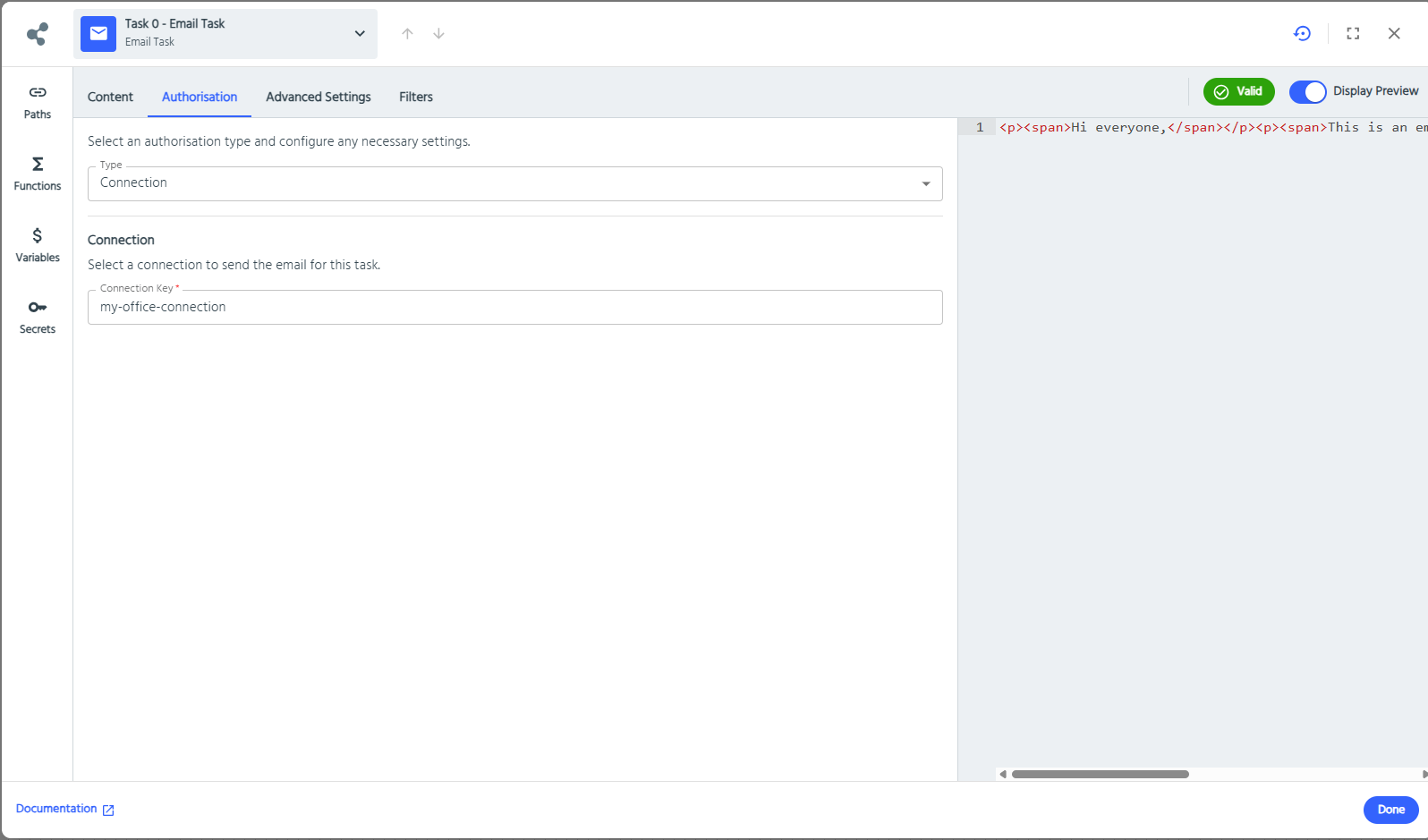
Once you have created an Office 365 Mail Connection, you can use it to send emails in your endpoint email tasks:
- In your endpoint, add or edit an Email Task.
- Go to the Authorisation tab.
- Set Type to Connection.
- Search and select the desired Office 365 Mail Connection.
When the task runs, AireGlu will automatically:
- Connect to your Entra Application using OAuth 2.0
- Send the configured email details from the task from the configured sender email account.
- And in the event of an authentication failure, the task will log the error details in the metrics under the "Usage Data" tab, allowing you to troubleshoot issues with your connection configuration.