
Appearance
Creating an MCP Server
Prerequisites
Before creating an MCP server, you need:
- At least one AireGlu endpoint configured and working
- The
create:McpServerConfigpermission claim - MCP enabled for your tenant - contact support if it isn't
Create a New Server
- Navigate to AI Tools > MCP Servers
- Click the Create button in the top-right corner
- The server editor dialog opens with two tabs: Server Settings and Endpoint Configuration
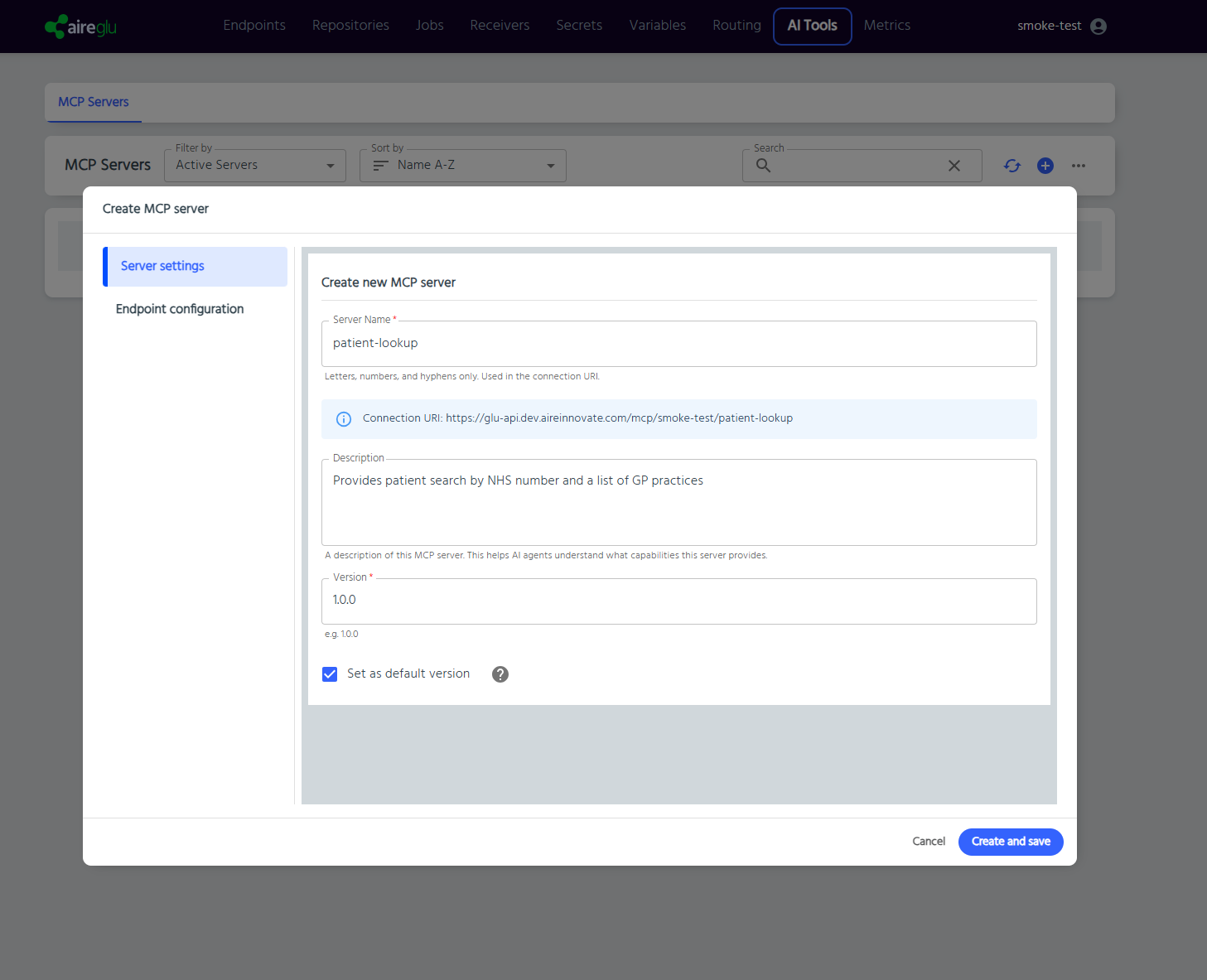
Server Settings Tab
Server Name
Required. The unique name for your MCP server. This value is used in the connection URI, so choose something meaningful and URL-friendly.
- 1-70 characters
- Letters, numbers, and hyphens only (
a-z,A-Z,0-9,-) - Must be unique across your account
As you type, a preview of the connection URI is displayed:
Connection URI: https://<runtime-host>/mcp/<tenancy>/<server-name>Description
Optional. Describes what this MCP server provides. This text is surfaced to AI agents to help them understand the server's purpose. Write a clear, concise summary of the capabilities exposed.
Version
Required. A semantic version number in the format X.Y.Z (e.g. 1.0.0). Each server must have at least one version. Versions must be unique within the server.
Set as Default Version
When checked, this version is used when an MCP client connects without specifying a version in the URI.
- URI with version:
https://<host>/mcp/<tenant>/<name>/1.0.0 - URI without version:
https://<host>/mcp/<tenant>/<name>(uses default)
Endpoint Configuration Tab
This tab is where you map your AireGlu endpoints to MCP tools and resources. See Tools and Resources for a detailed explanation of the two exposure types.
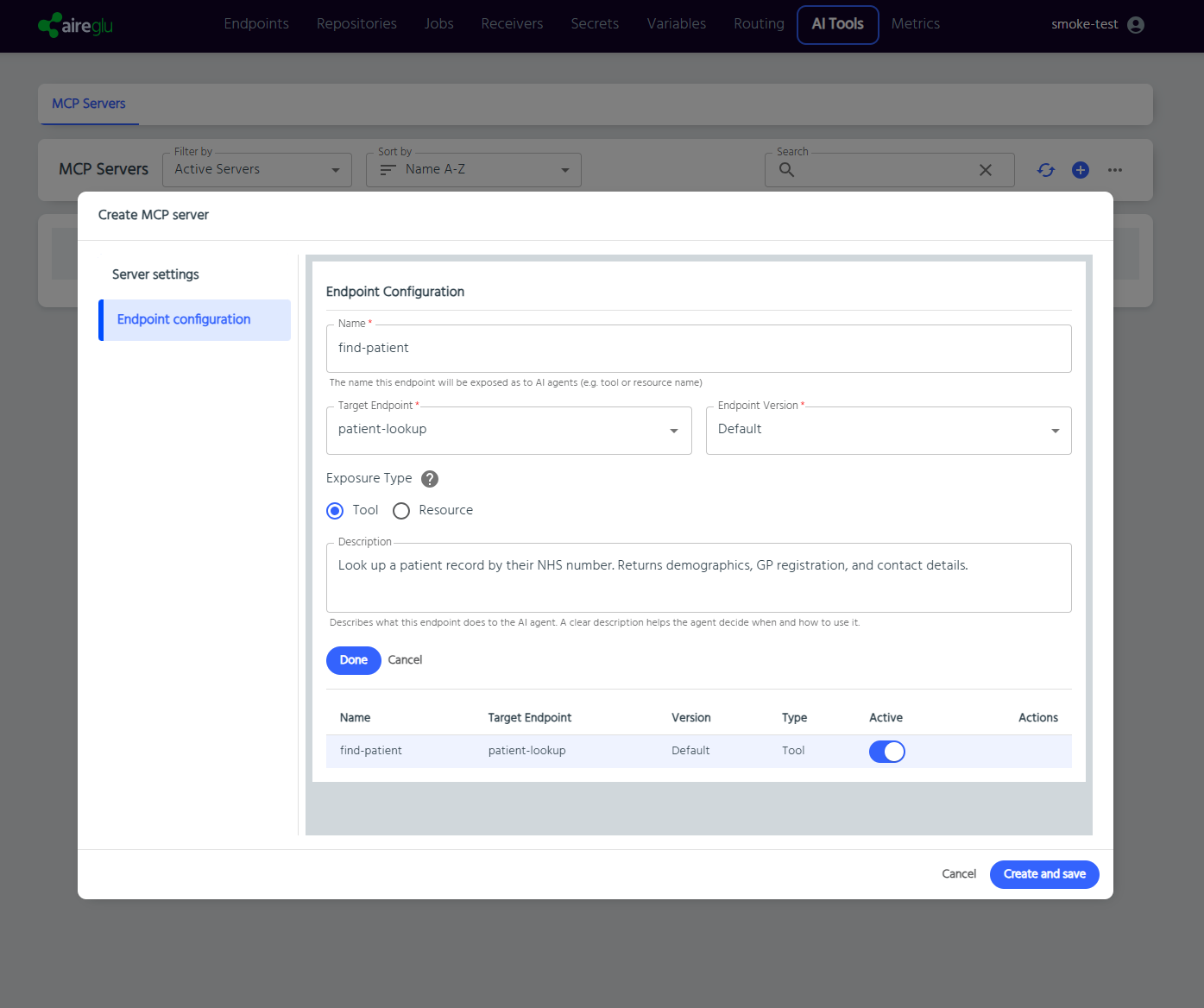
Adding an Endpoint
- Click the Add endpoint button
- An inline form appears with the fields described below
- Fill in the required fields
- Click Done to confirm the endpoint, or Cancel to discard it
NOTE
Only one endpoint can be edited at a time. The Add endpoint button is hidden while the inline form is open.
Name
Required. The name AI agents will see for this tool or resource. Choose a descriptive, action-oriented name.
- 1-64 characters
- Letters, numbers, underscores, and hyphens only (
a-z,A-Z,0-9,_,-) - Must be unique within the version (case-insensitive)
Target Endpoint
Required. Select an existing AireGlu endpoint from the searchable dropdown. This is the endpoint that will be executed when the AI agent invokes the tool or reads the resource.
TIP
Endpoints using Callback or AdapterCallback input modes cannot be exposed via MCP.
Endpoint Version
Required. Select which version of the target endpoint to use. The dropdown is populated after selecting a target endpoint. Selecting default uses the endpoint's default version.
This field is disabled until a target endpoint is selected. Changing the target endpoint resets the version selection.
Exposure Type
Choose how this endpoint is exposed to AI agents:
- Tool - An action the agent can invoke (e.g. send an email, run a query)
- Resource - Data the agent can read (e.g. fetch records, retrieve a document)
A help icon next to the label provides a tooltip summary of the difference. See Tools and Resources for full details.
Description
Optional but recommended. Tells the AI agent what this endpoint does and when to use it. A clear description directly improves the agent's ability to select the right tool or resource.
Resource URI (Resource type only)
Required for Resources. A unique URI identifying this resource. Use a descriptive scheme such as:
data://patient-recordsfile://config.jsonaireglu://my-server/lookup
Must be unique within the version (case-insensitive).
Mime Type (Resource type only)
The content type of the resource response. Defaults to application/json. Other common values: text/plain, application/xml, text/html.
Editing an Endpoint
Click the edit icon on an endpoint row in the table. The inline form opens pre-populated with the endpoint's current values. Make changes and click Done to save, or Cancel to revert to the previous values.
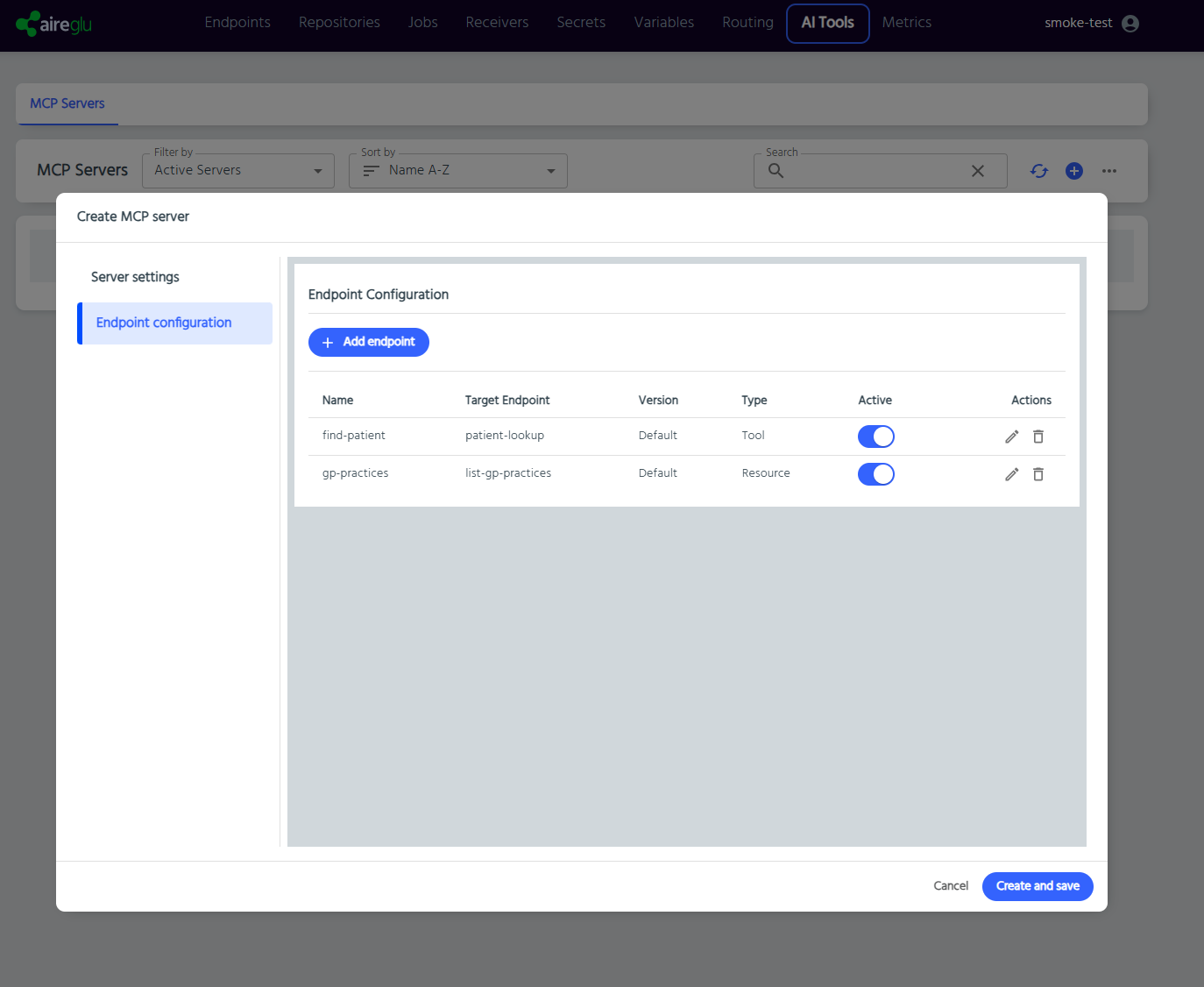
Endpoints Table
After adding endpoints, they appear in the summary table showing:
| Column | Description |
|---|---|
| Name | The exposed name |
| Target Endpoint | The underlying AireGlu endpoint |
| Version | The endpoint version in use |
| Type | Tool or Resource |
| Active | Toggle to enable/disable individual Tools or Resources |
| Actions | Edit or Delete icons |
Saving
Click Save to create the MCP server. The server appears in the list and is immediately available for MCP clients to connect to (provided both the server and version are active).
Editing an Existing Server
- Expand the server in the list to see its versions
- Click the three-dot menu on the server row and select Edit
- The edit dialog opens with the same tabs. The server name cannot be changed after creation.
To edit a specific version, click the three-dot menu on the version row and select Edit version.
Server Actions Menu
The three-dot menu on the server row provides the following options:
| Action | Description |
|---|---|
| Edit | Open the server editor dialog |
| Copy URL | Copy the MCP connection URI to the clipboard |
| Copy Client Config | Copy a ready-to-paste client configuration (see Connecting Clients) |
| Export | Copy the full server configuration as JSON to the clipboard |
| Set Default Version | Open a dialog to change which version is used when no version is specified in the URI |
| Delete | Delete the server (with confirmation) |
Version Actions Menu
The three-dot menu on a version row provides:
| Action | Description |
|---|---|
| Edit version | Open the editor for this specific version |
| Add version | Create a new version on this server |
| Copy Client Config | Copy client config targeting this specific version |
Setting the Default Version
The default version is used when an MCP client connects without specifying a version in the URI. You can set it in two ways:
- During creation — Check the Set as Default Version checkbox in the Server Settings tab
- After creation — Click the three-dot menu on the server row and select Set Default Version
The Set Default Version dialog shows the current default and a dropdown to select a new one. Select None to clear the default entirely.
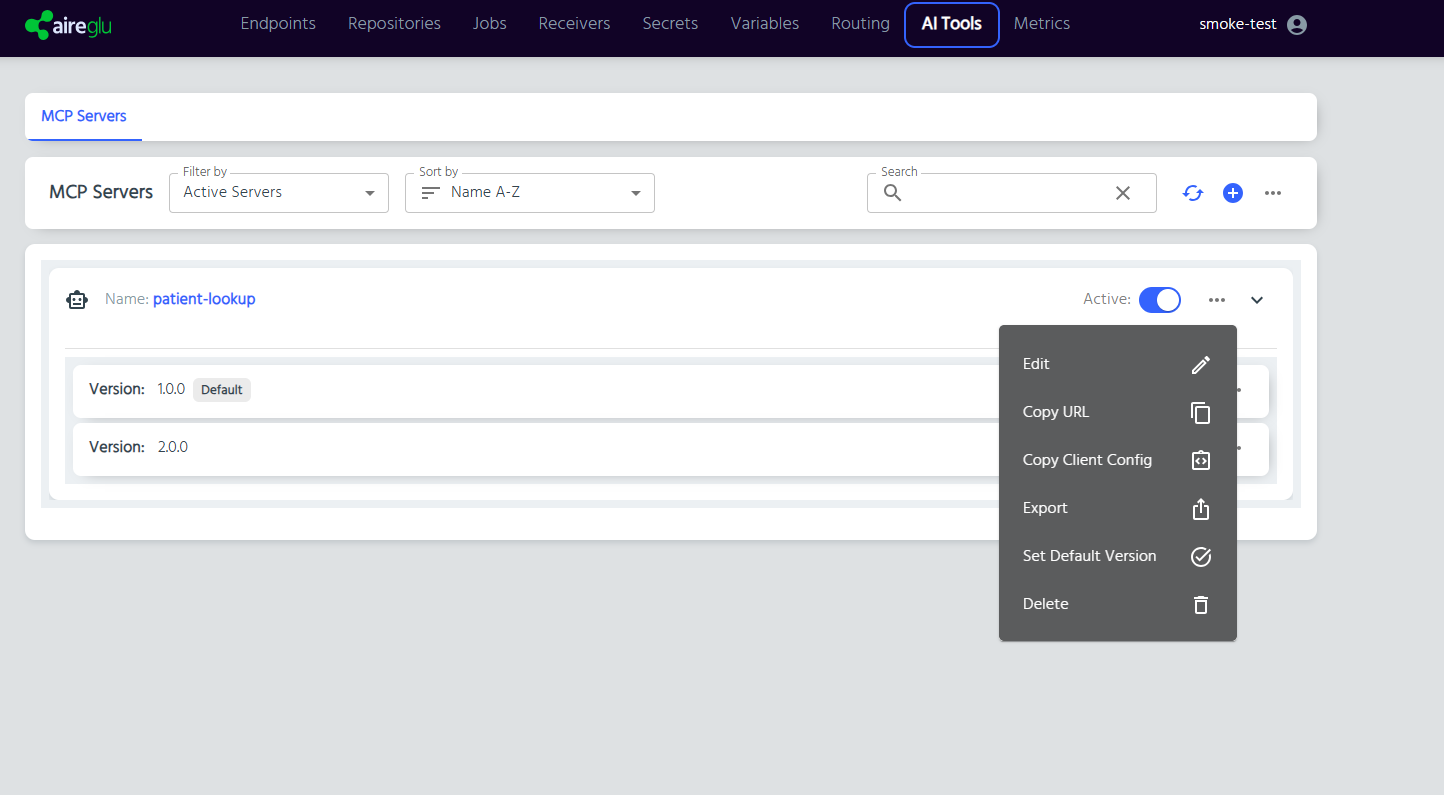
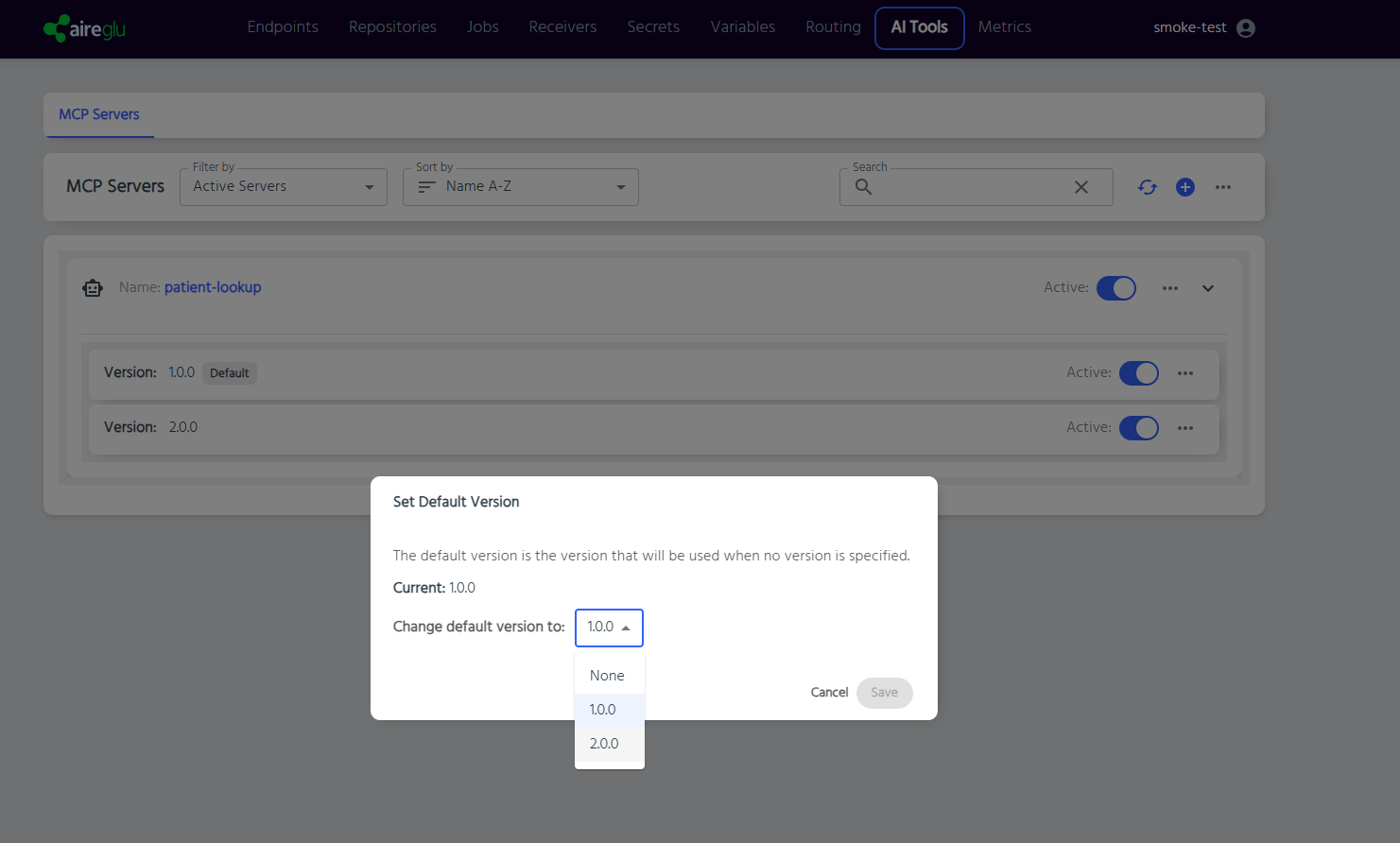
The default version is indicated by a Default chip next to the version number in the list.
Adding a New Version
- Expand the server in the list
- Click the three-dot menu on any version row and select Add version
- Enter a new version number and configure endpoints
- Optionally set the new version as the default
Activating and Deactivating
Server Level
Toggle the Active switch on the server row to enable or disable the entire server. A deactivated server rejects all MCP client connections.
Version Level
Toggle the Active switch on a version row to enable or disable that version. Inactive versions return an error when requested directly and are excluded from the default version fallback.
TIP
Use version-level deactivation to deprecate old versions while keeping the server online for clients using newer versions.
Warning Indicators
The server list displays warning icons in two situations:
- No endpoints configured — A version has no exposed endpoints. A warning icon appears on the version row.
- Missing target endpoints — A version references AireGlu endpoints that no longer exist (e.g. deleted or renamed). The warning tooltip lists the missing endpoint names.
These warnings appear on active versions only. Resolve them by editing the version to add or fix endpoint mappings.